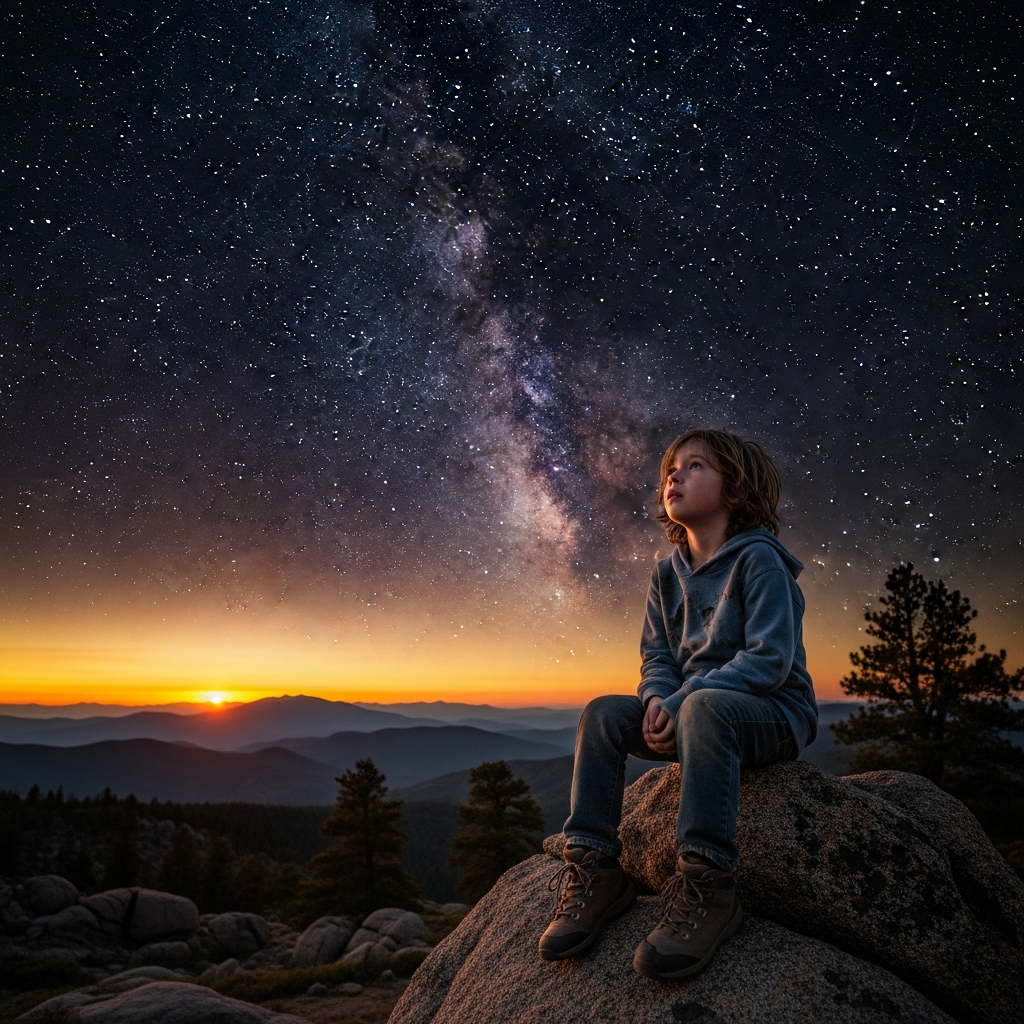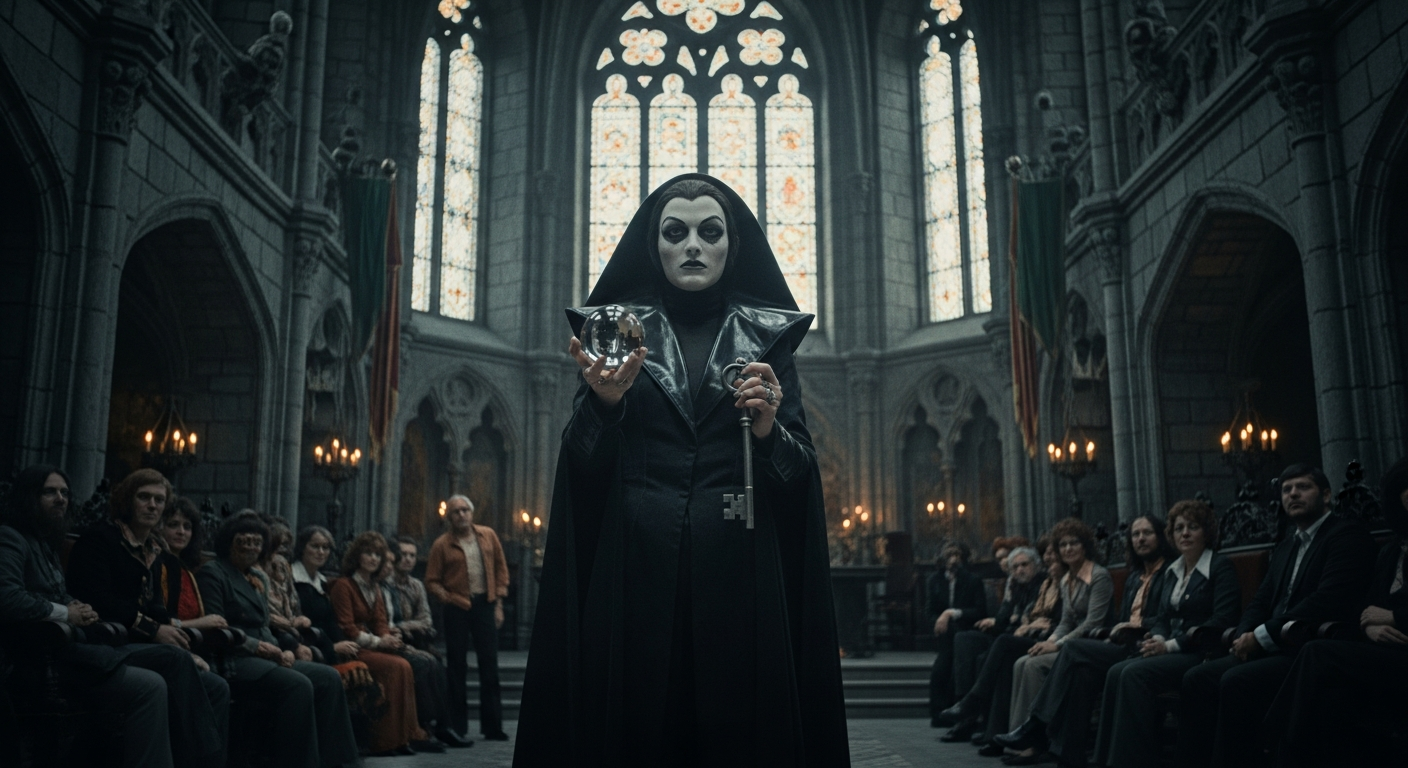
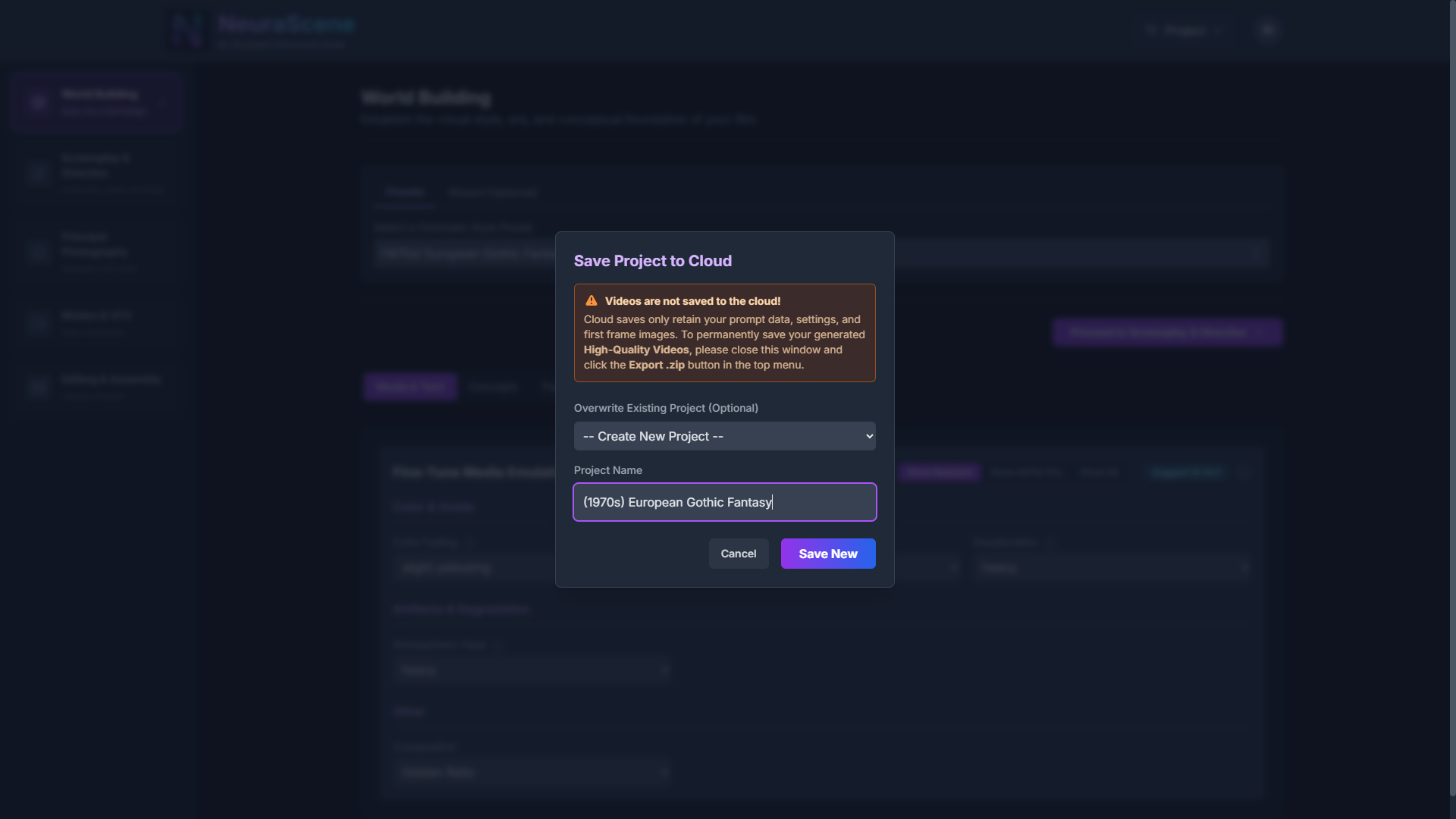
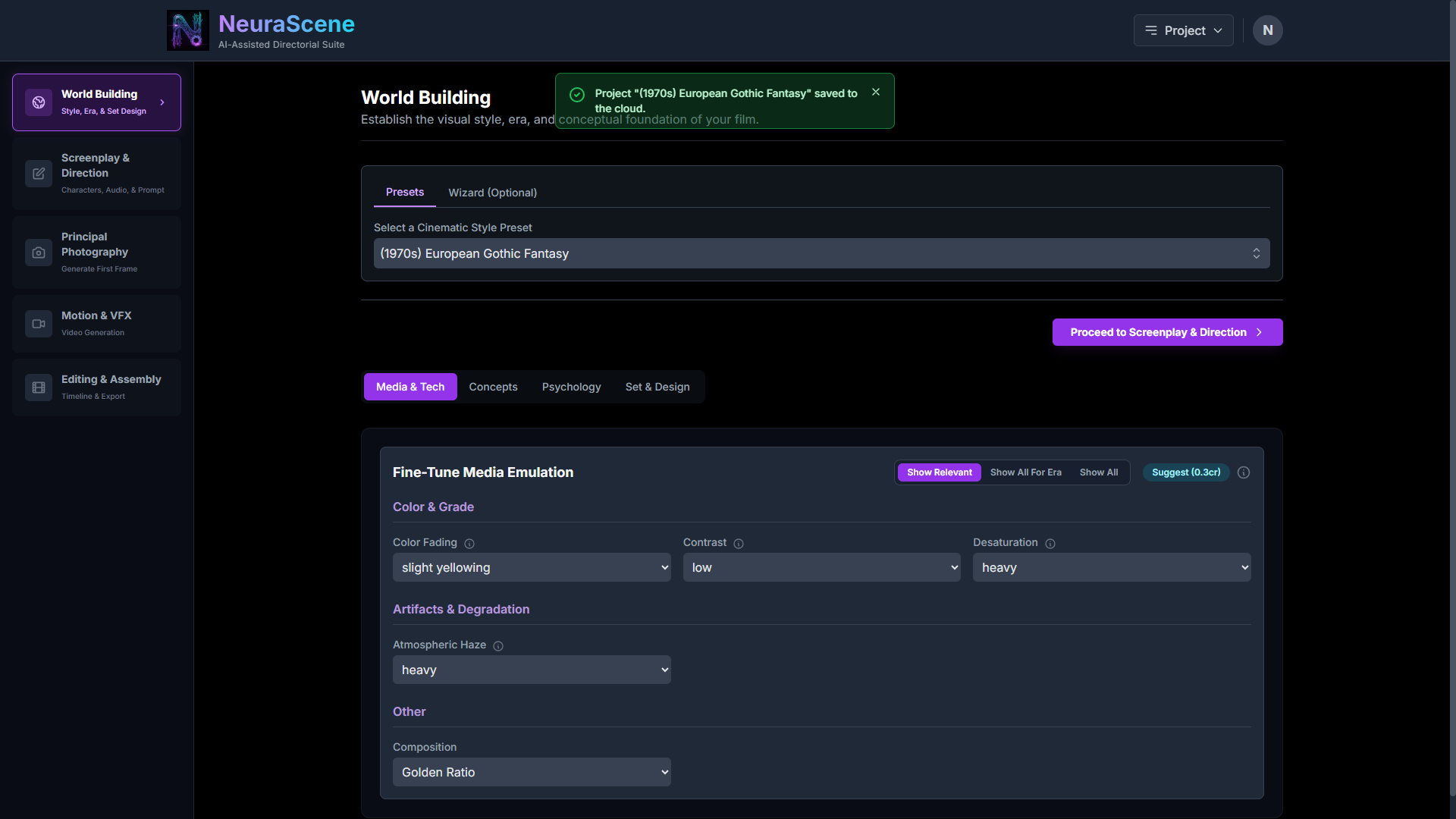
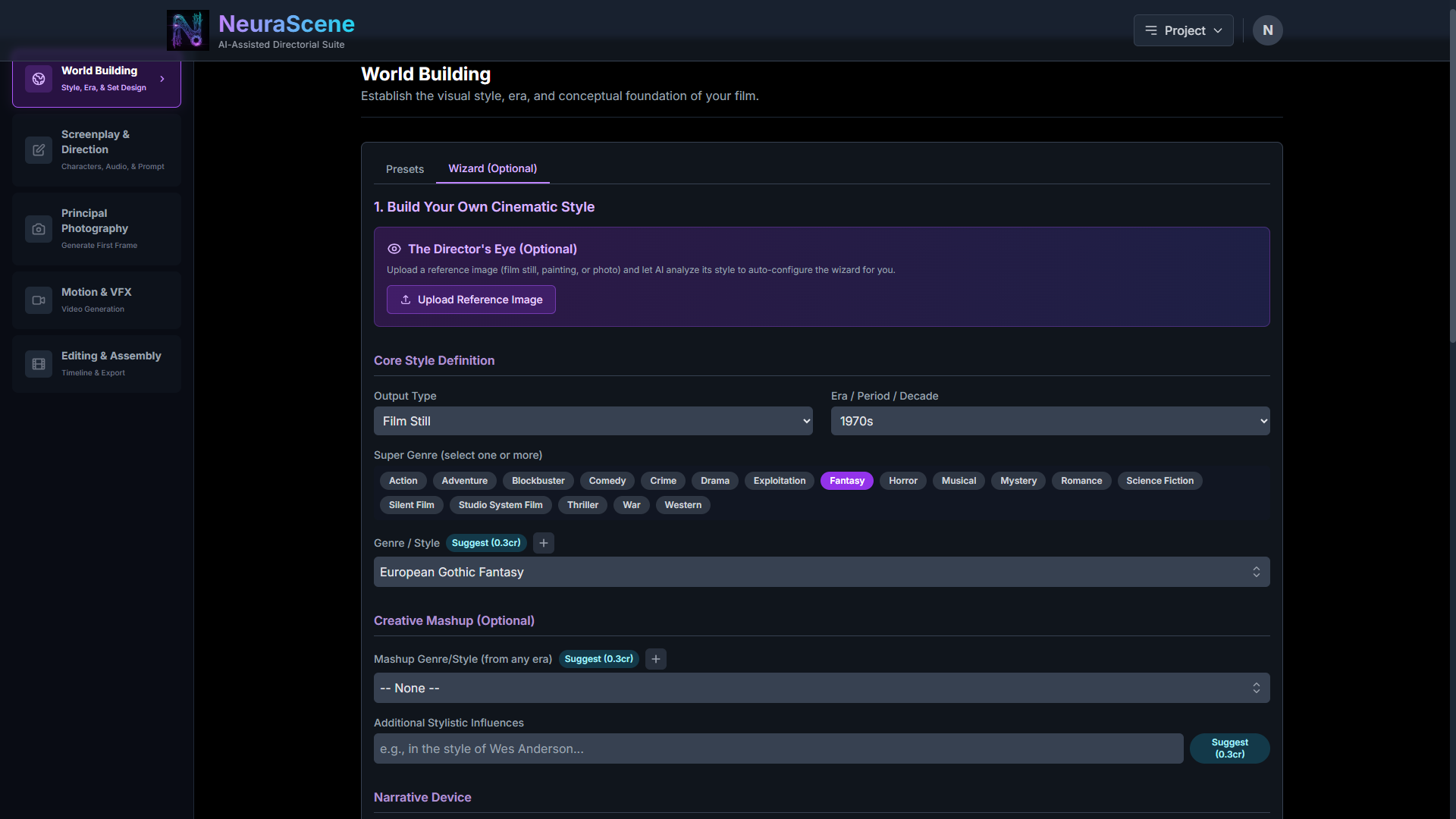
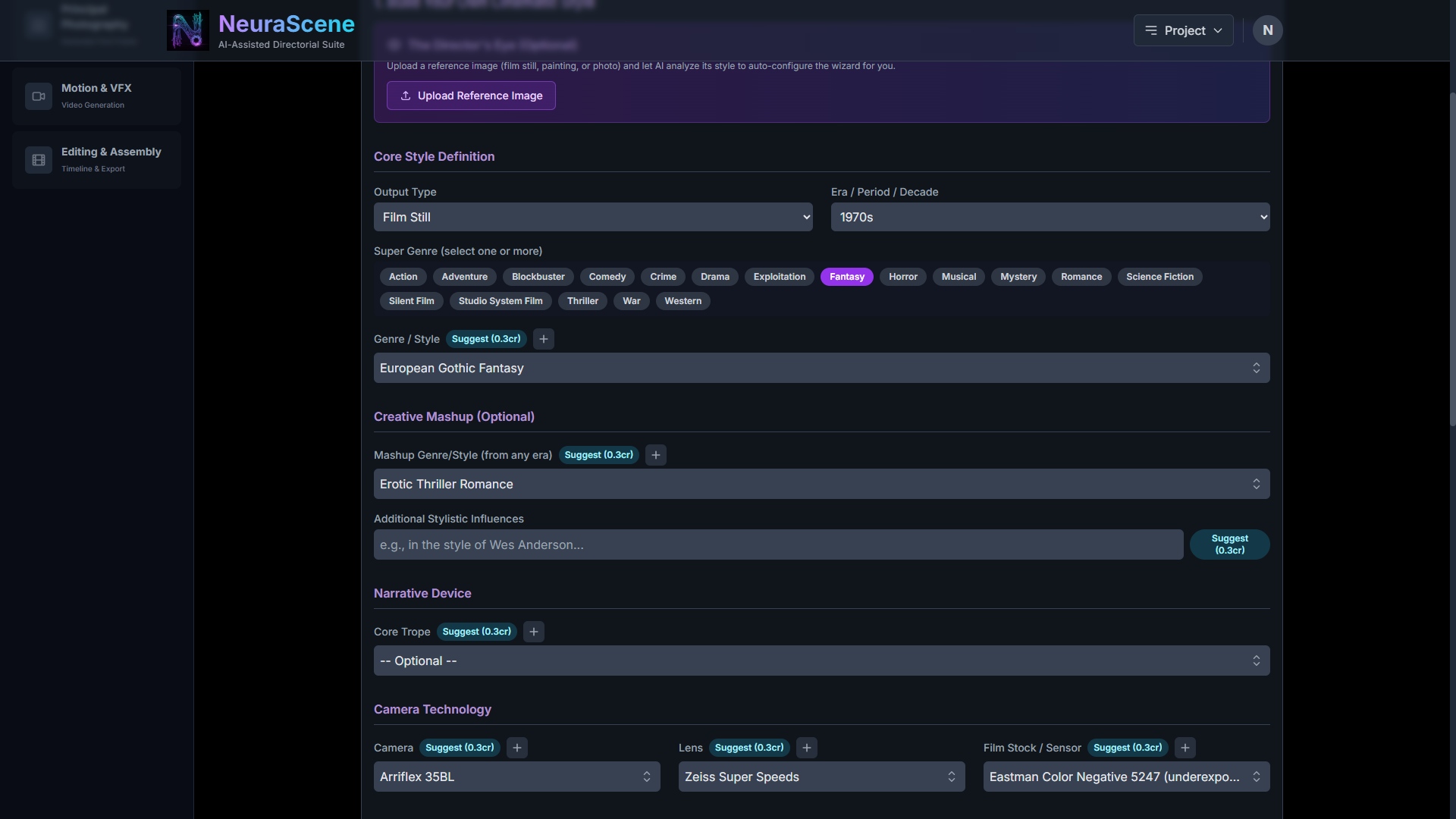
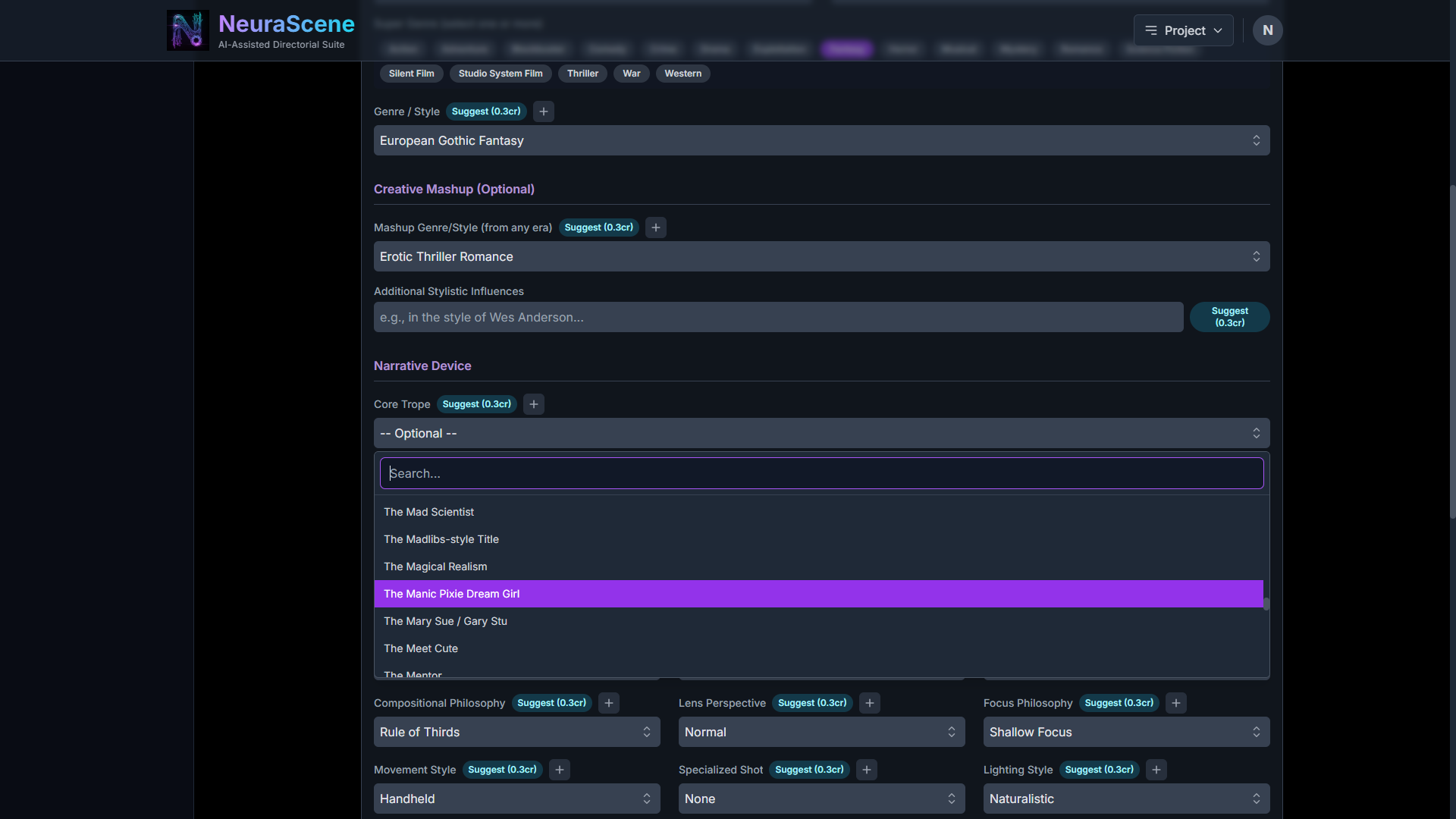
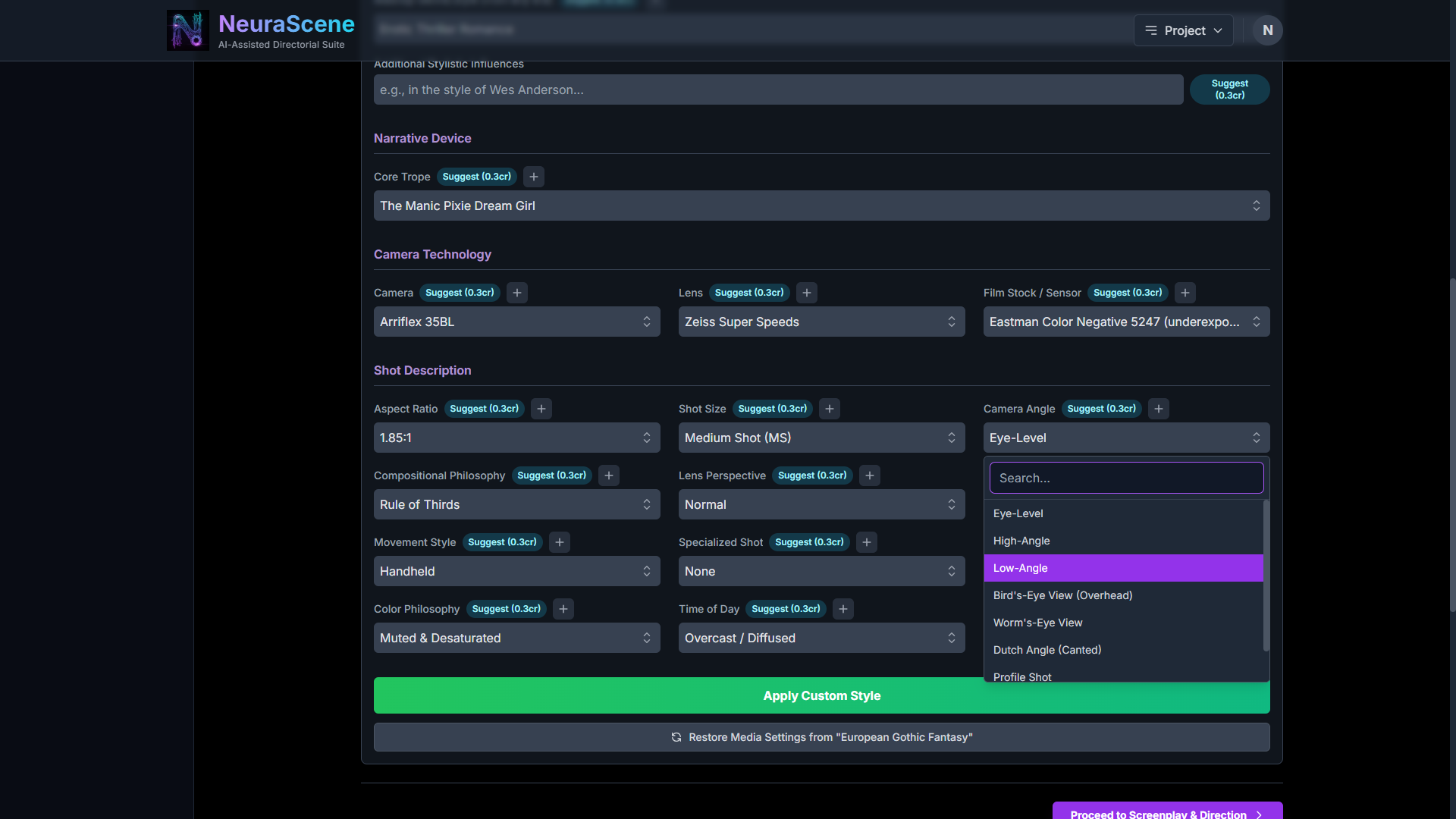
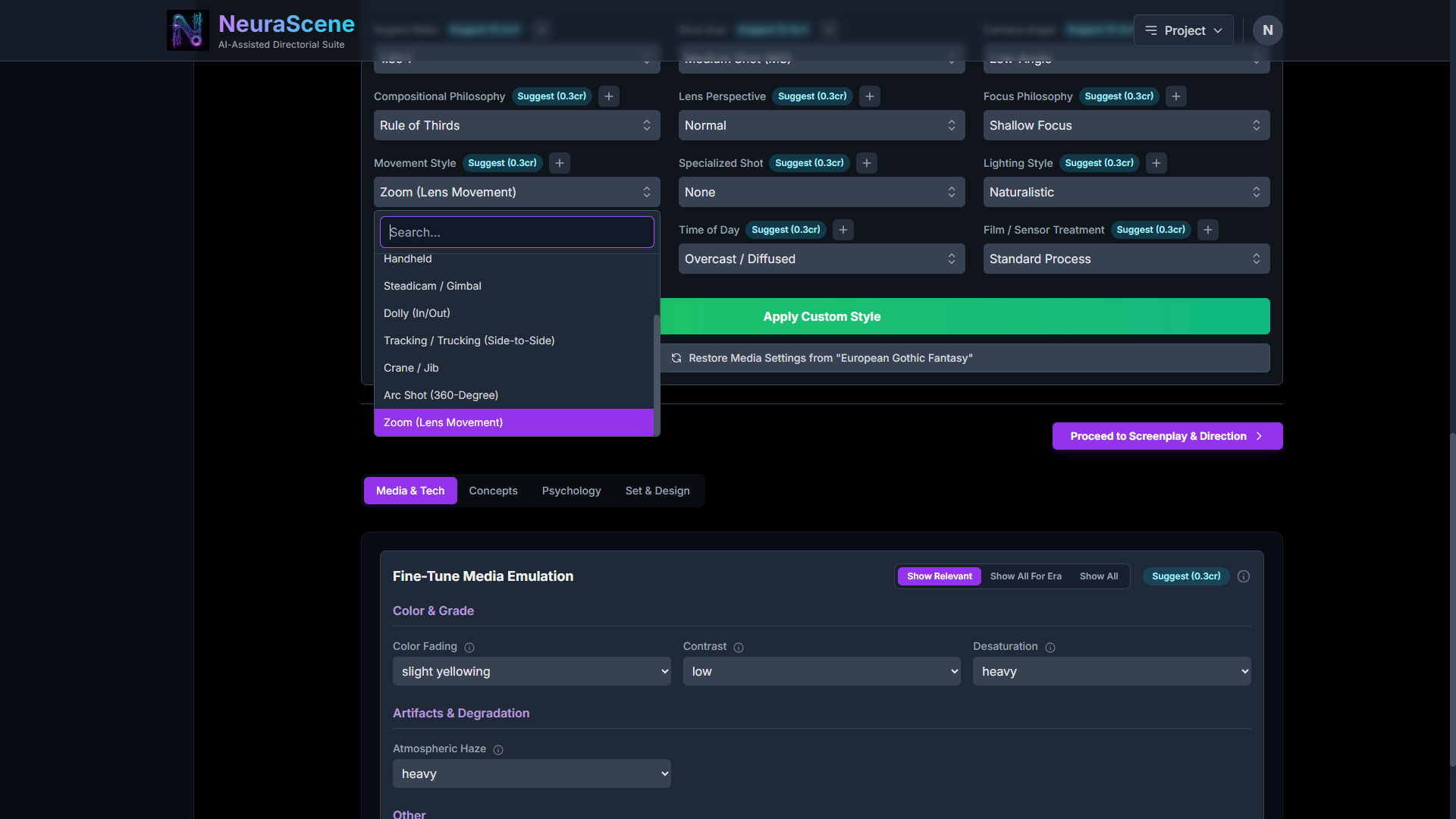
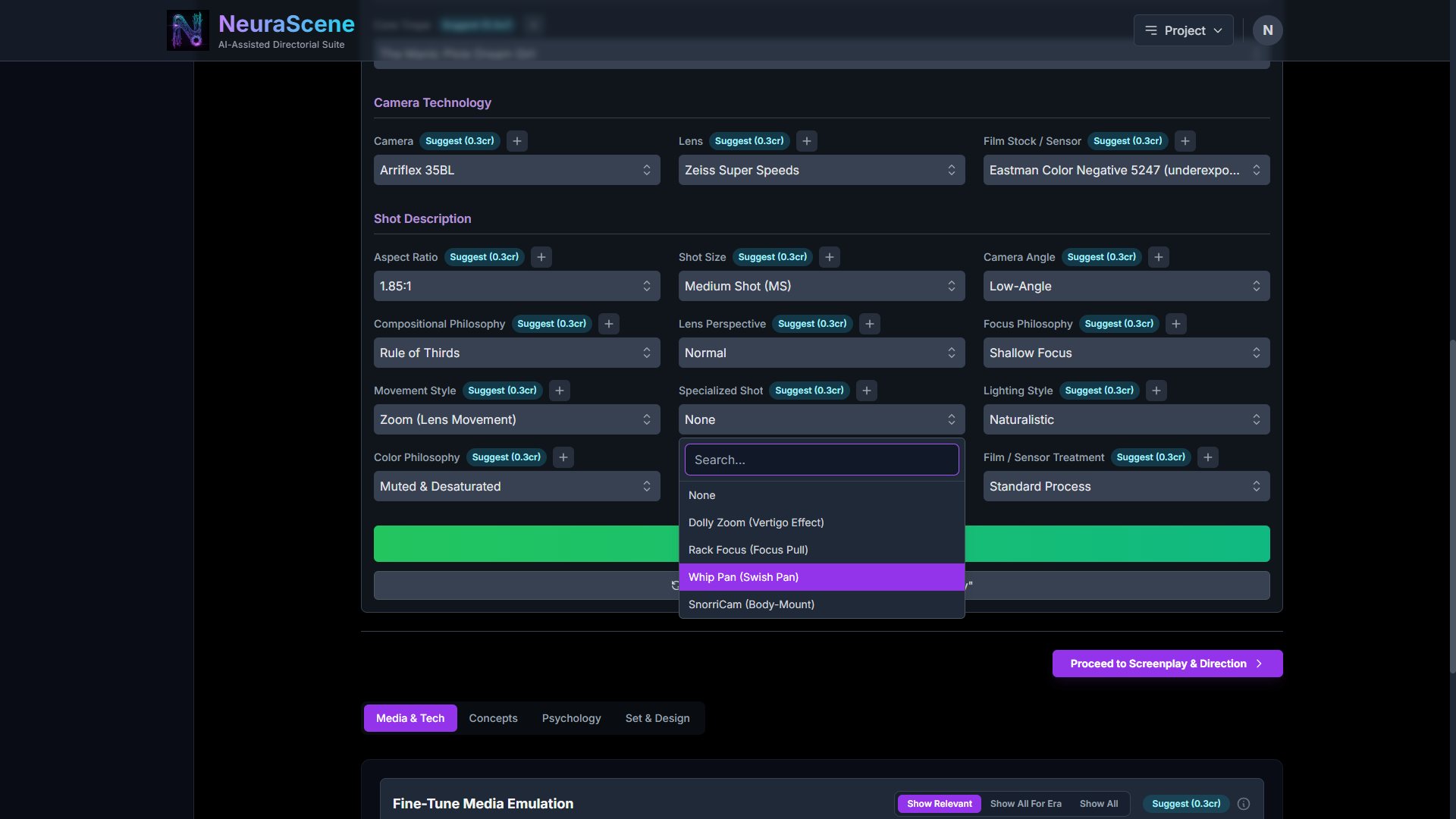
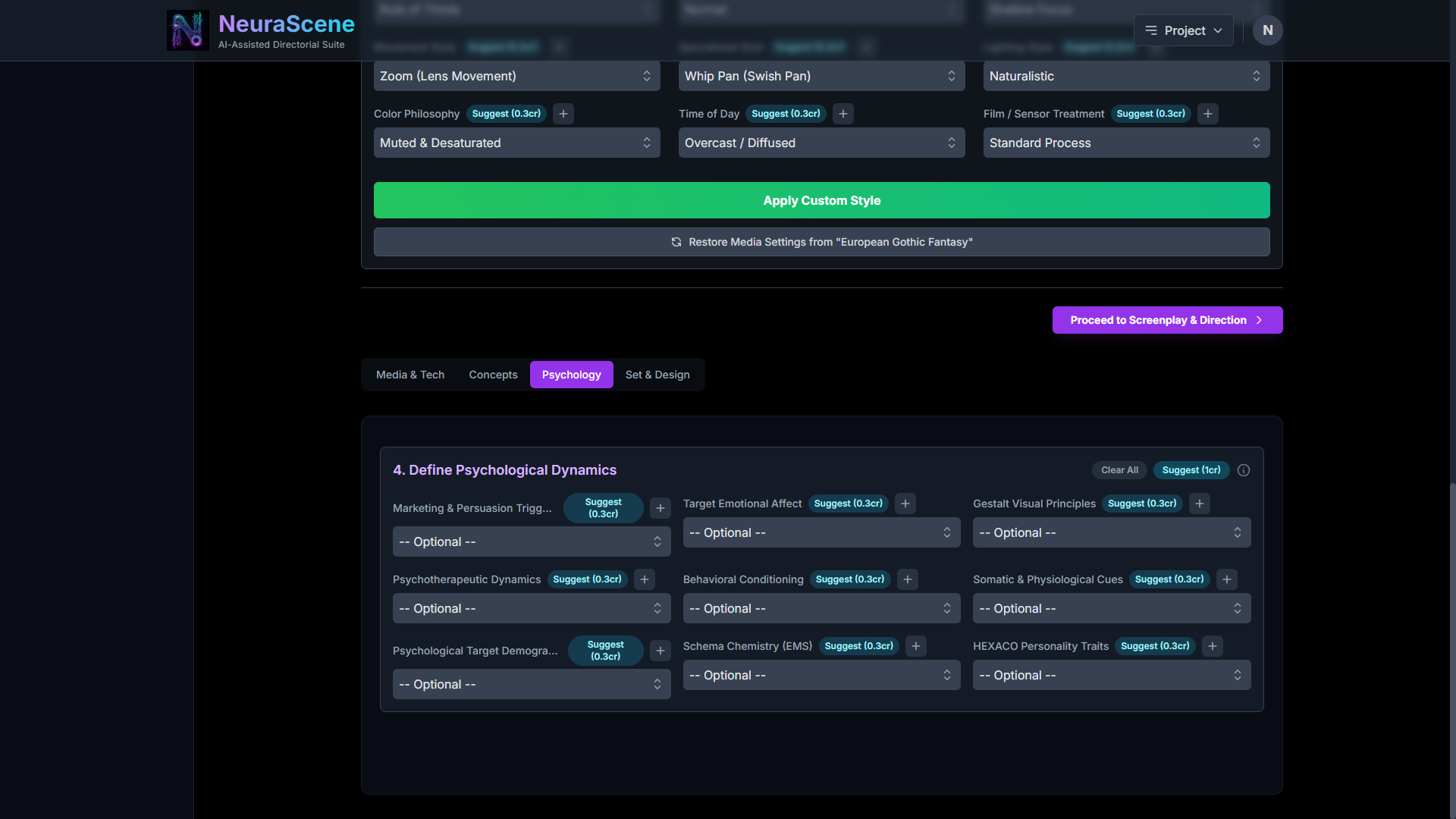
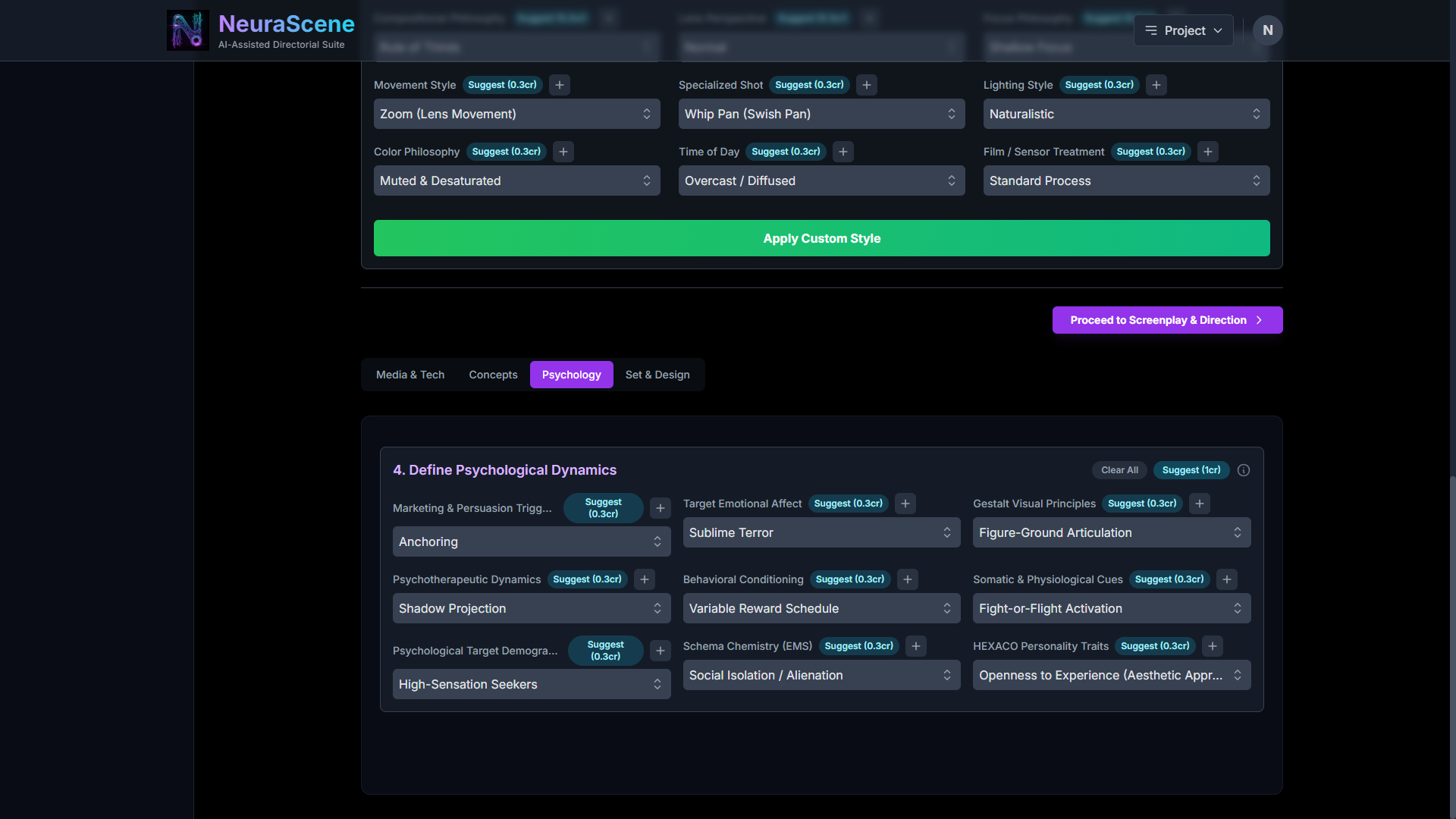
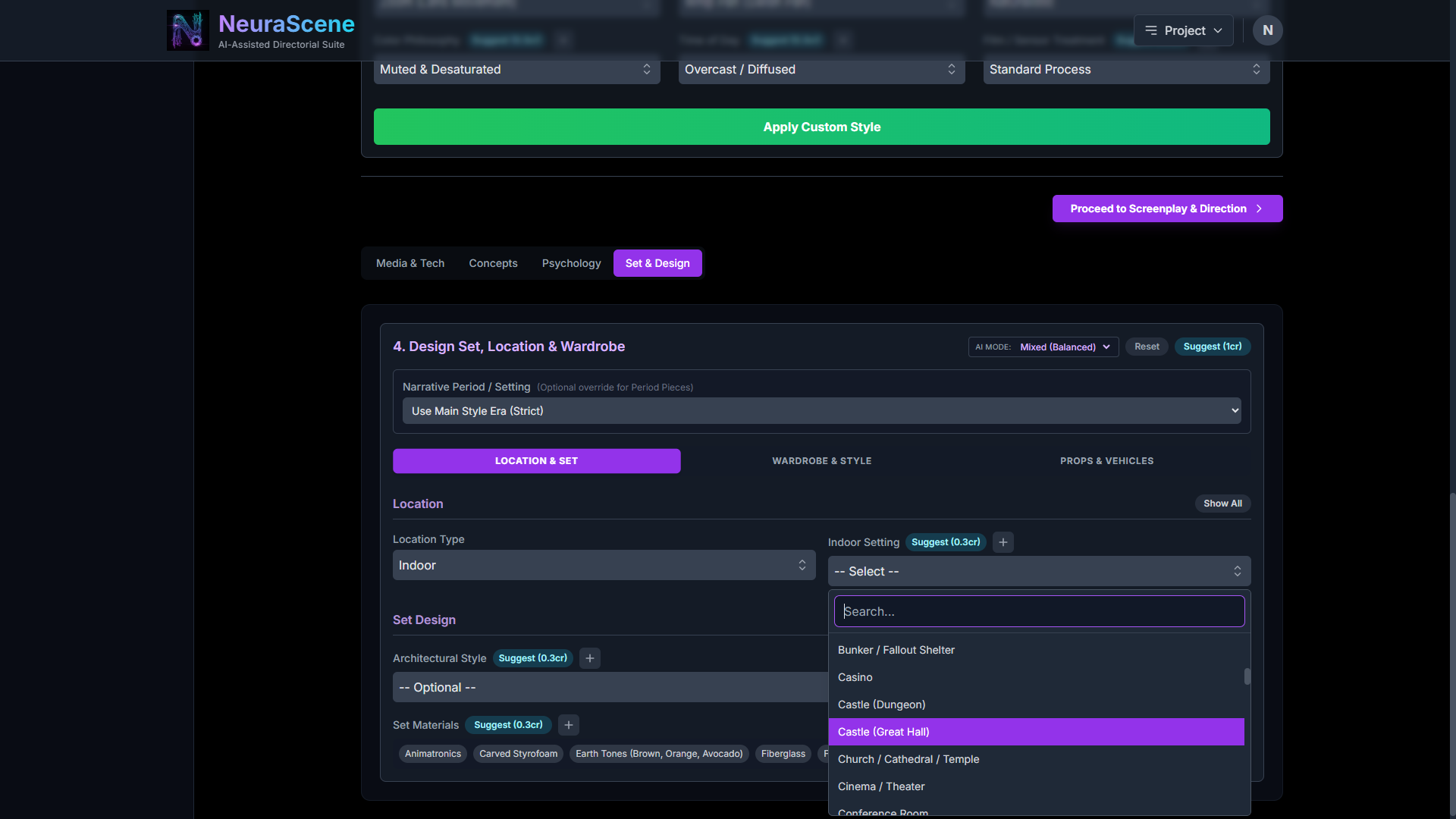
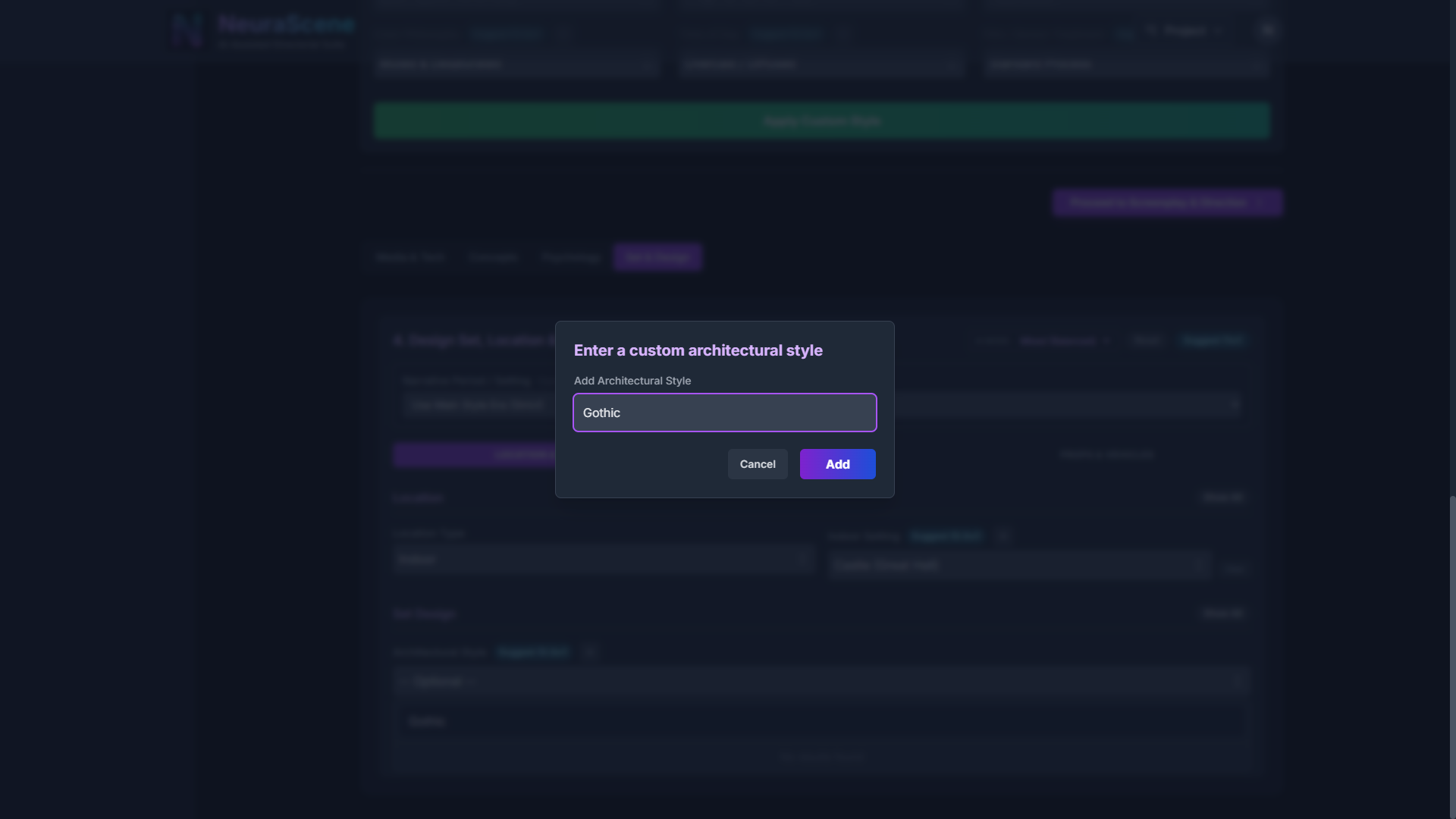
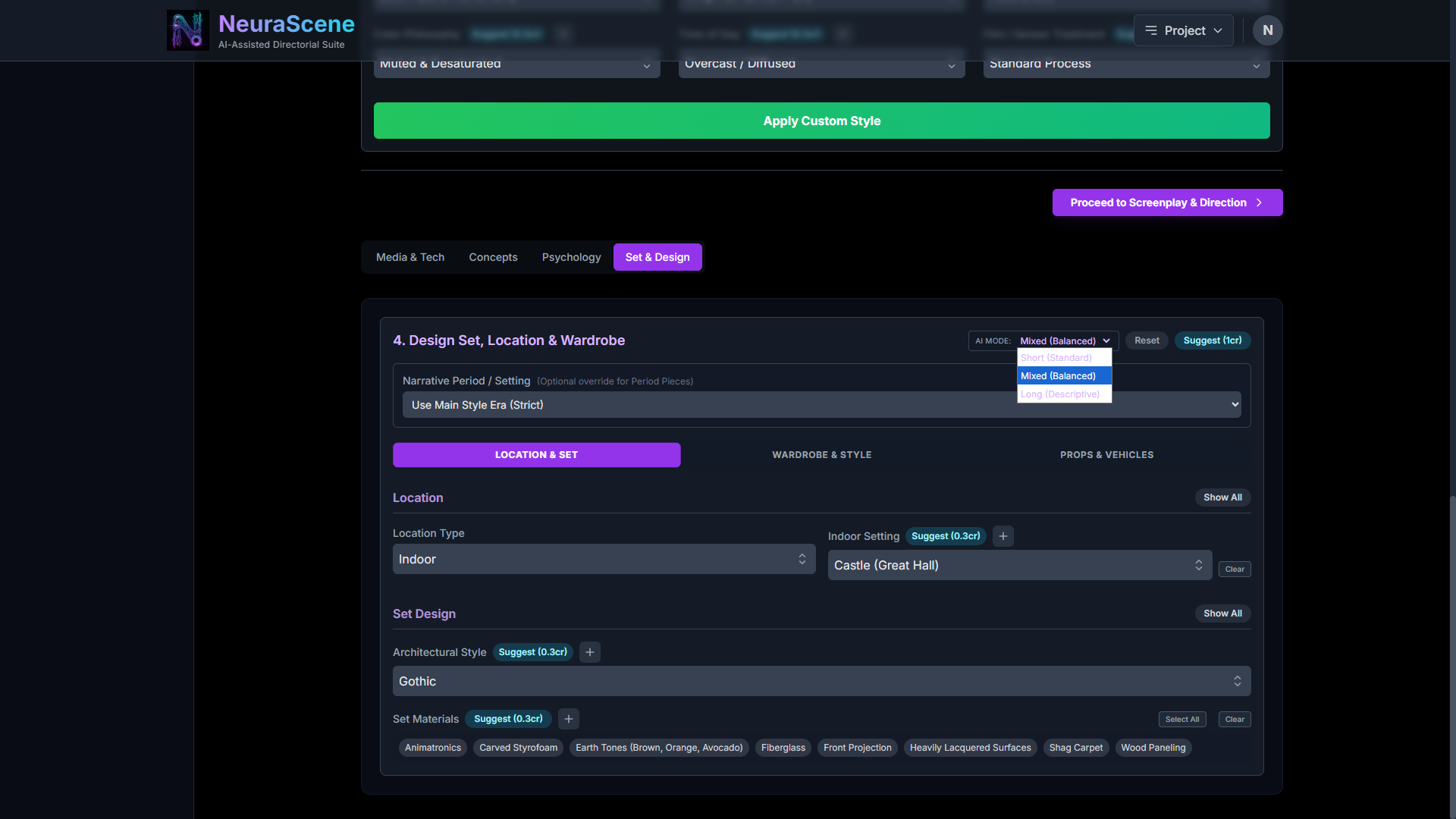
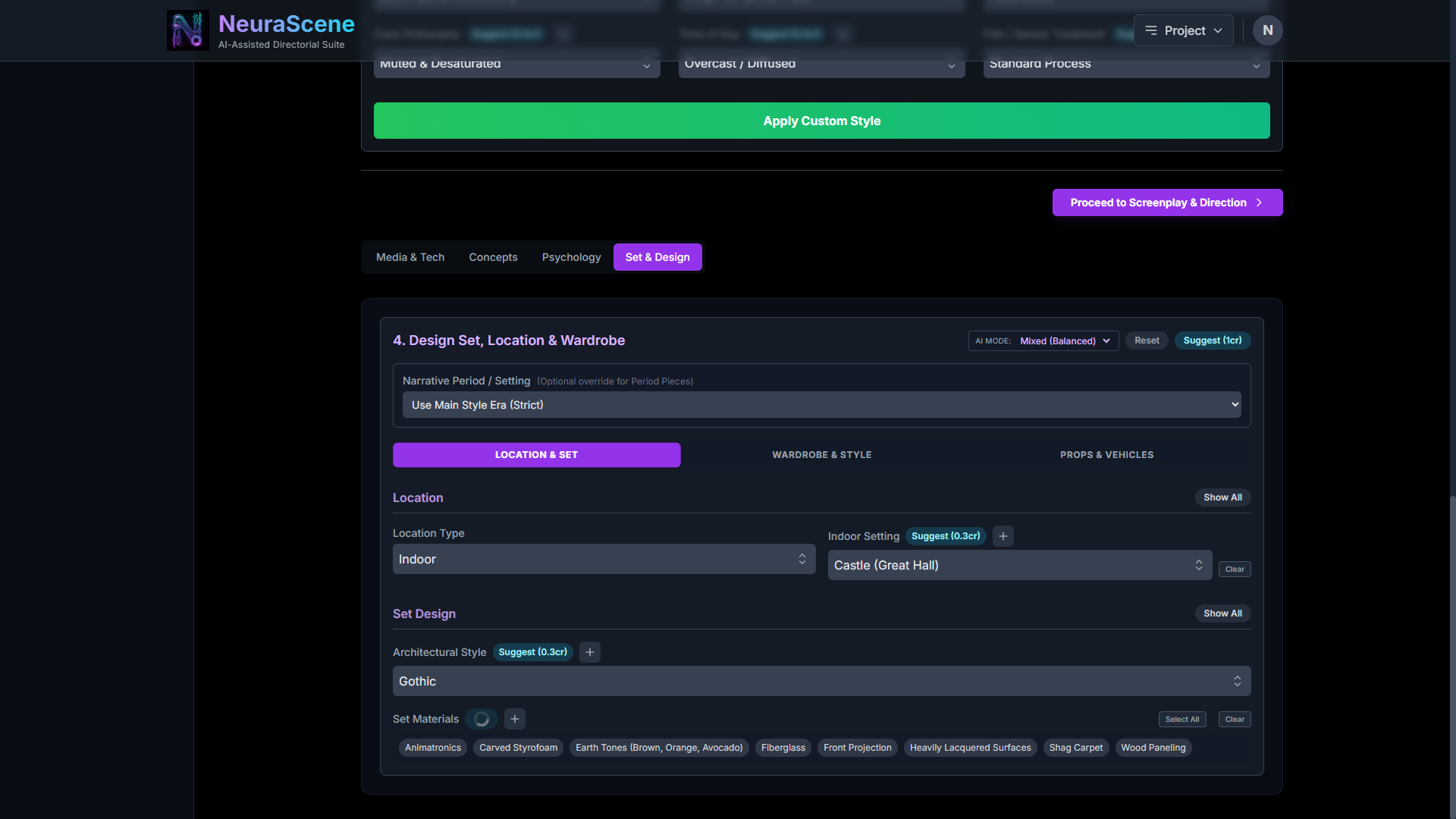
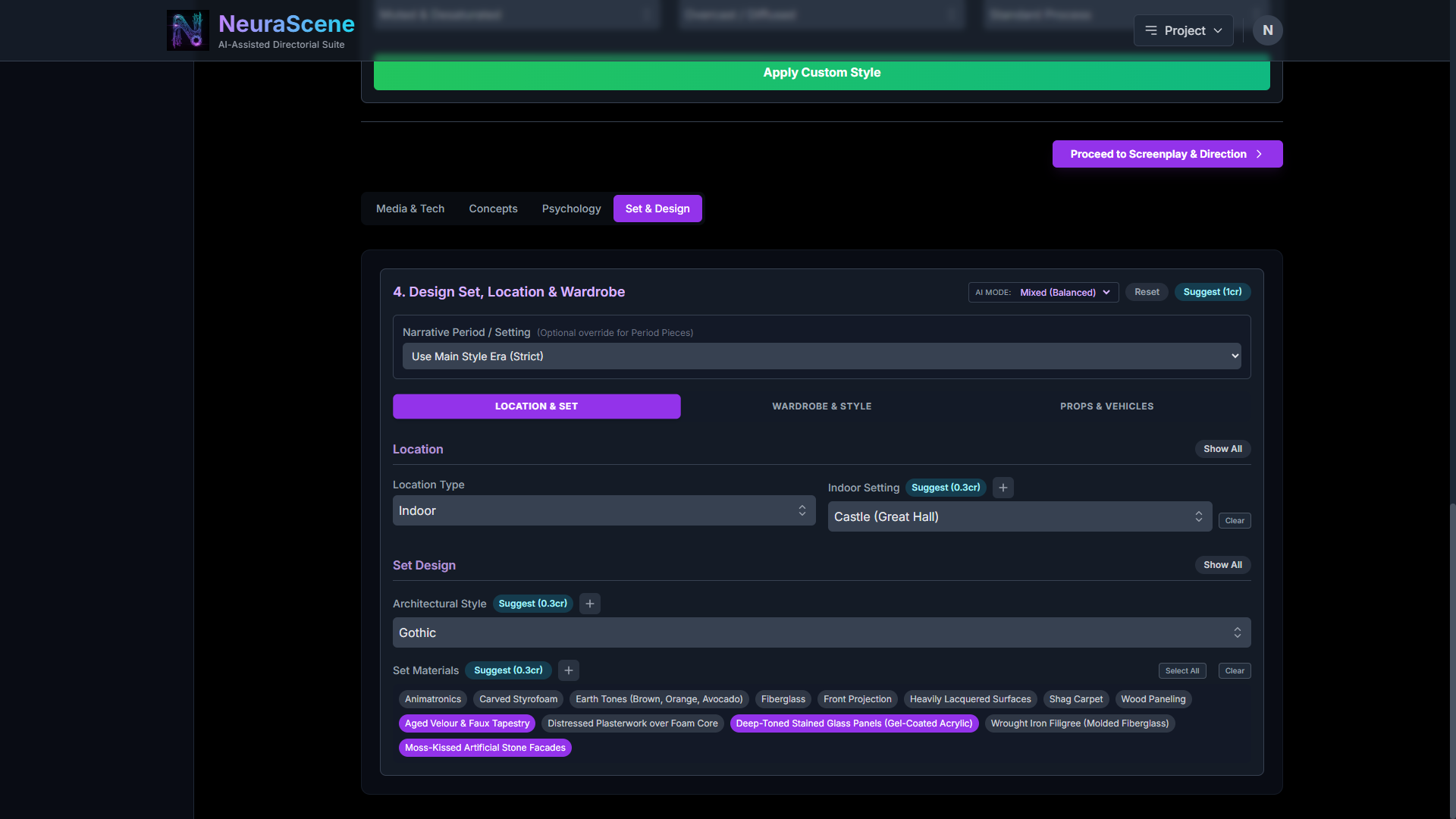
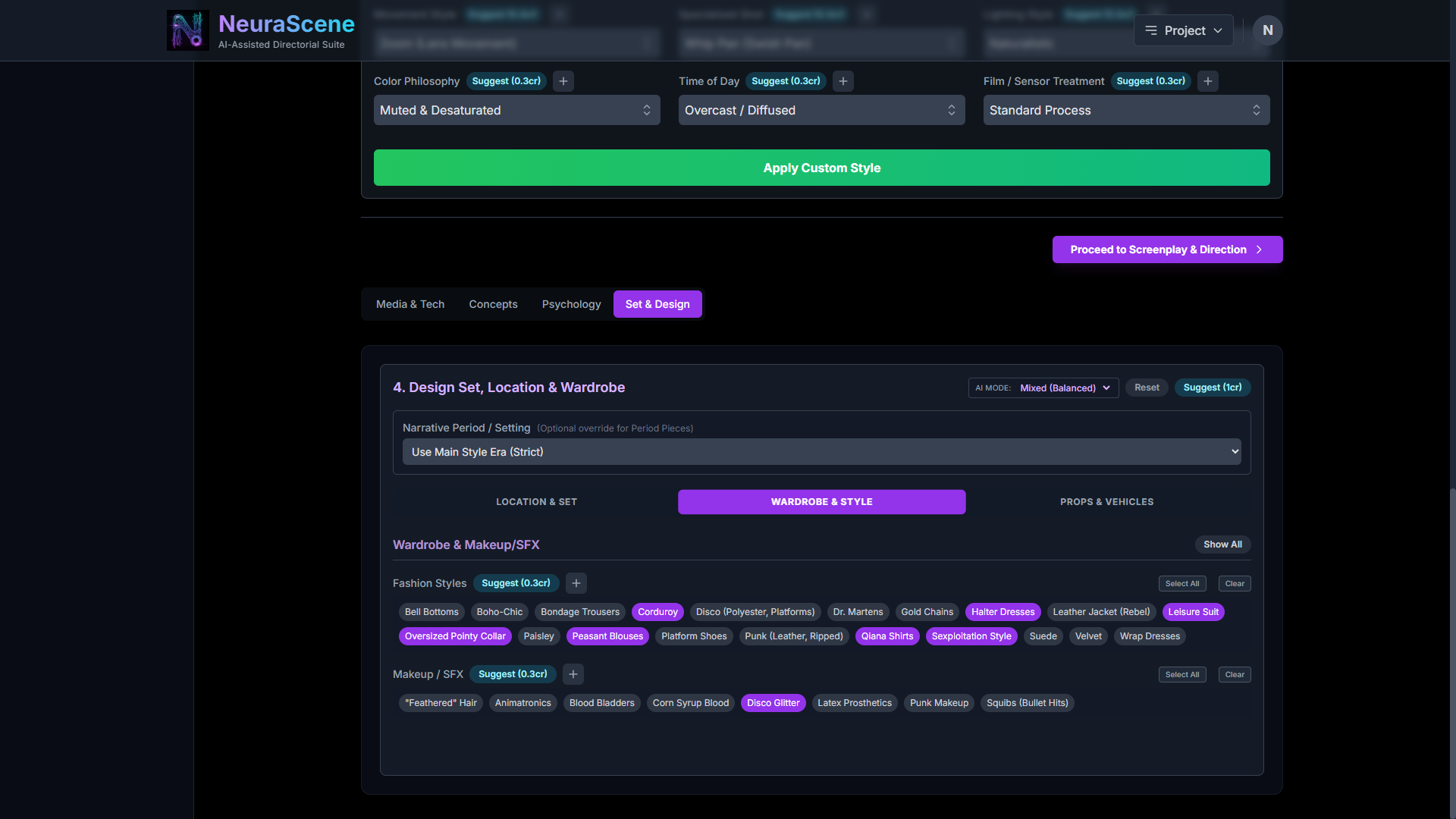
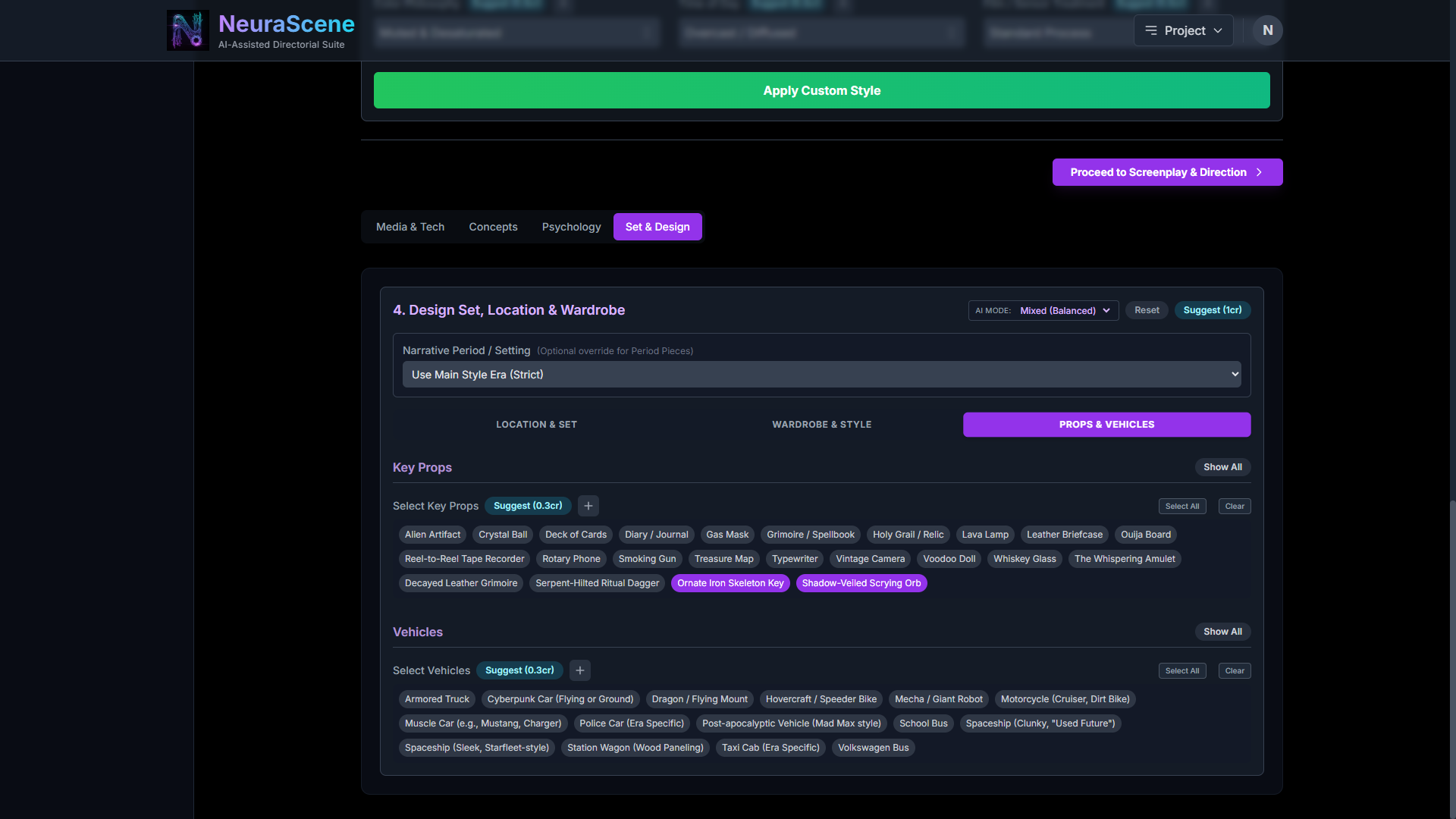
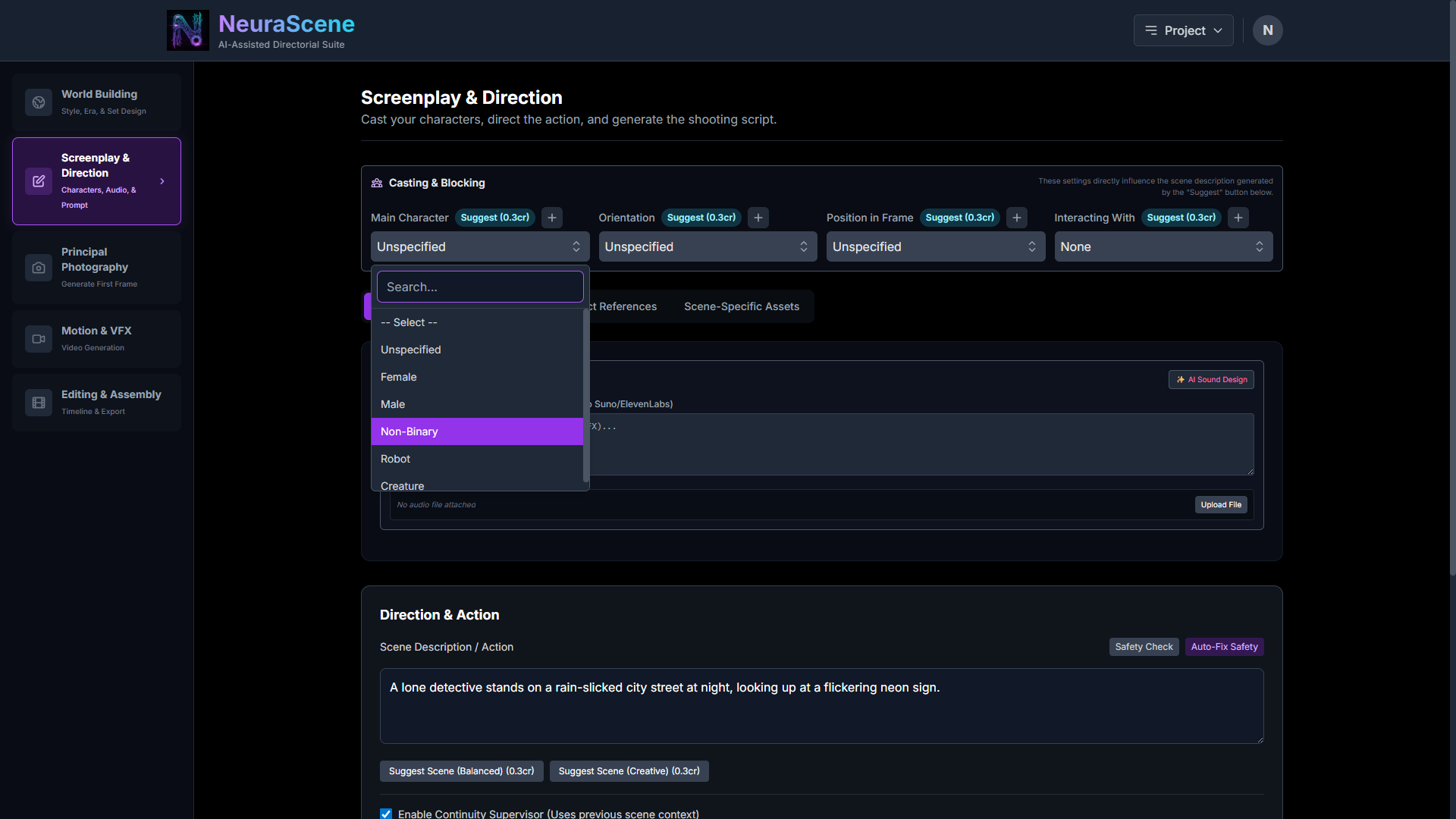
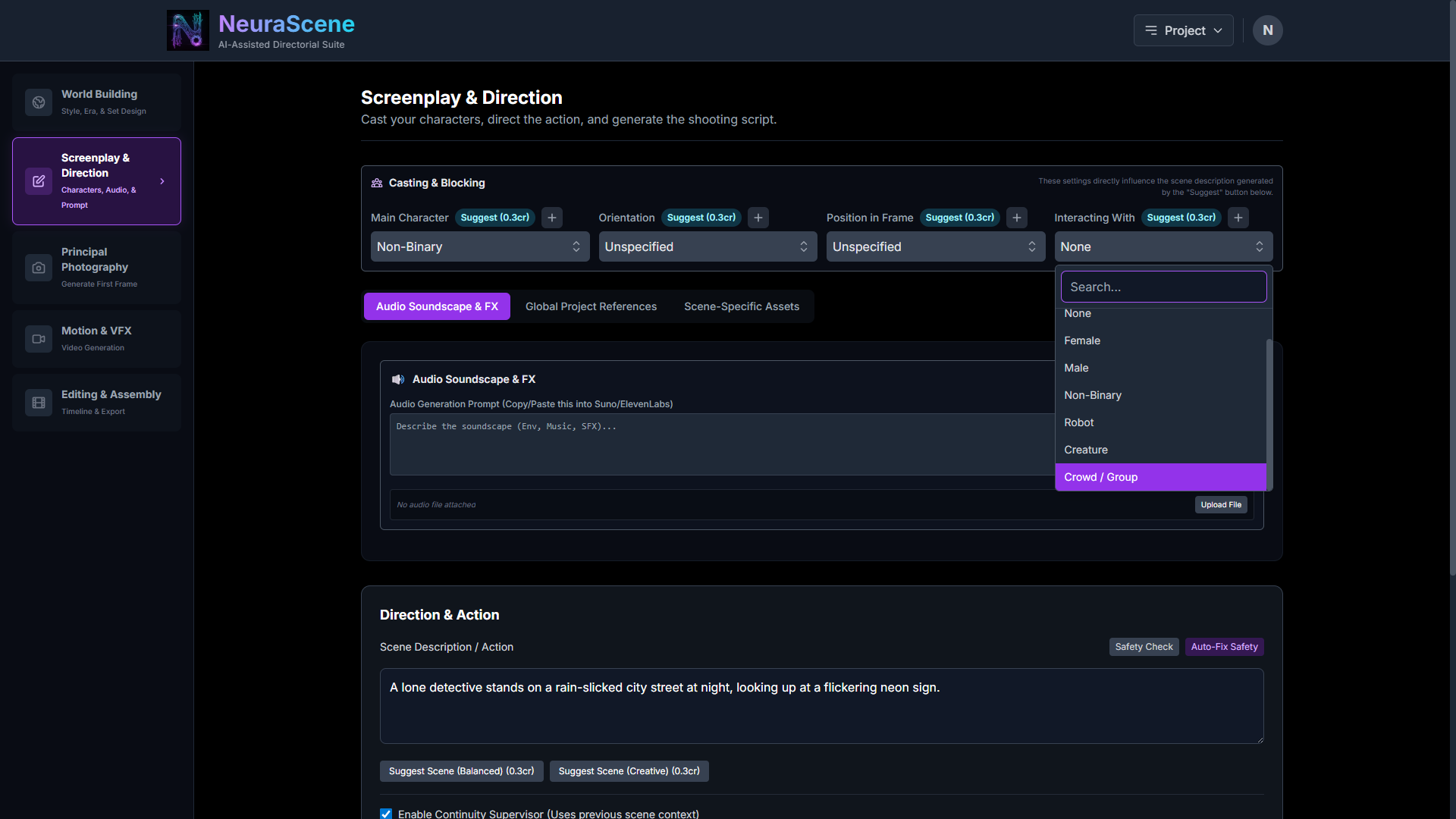
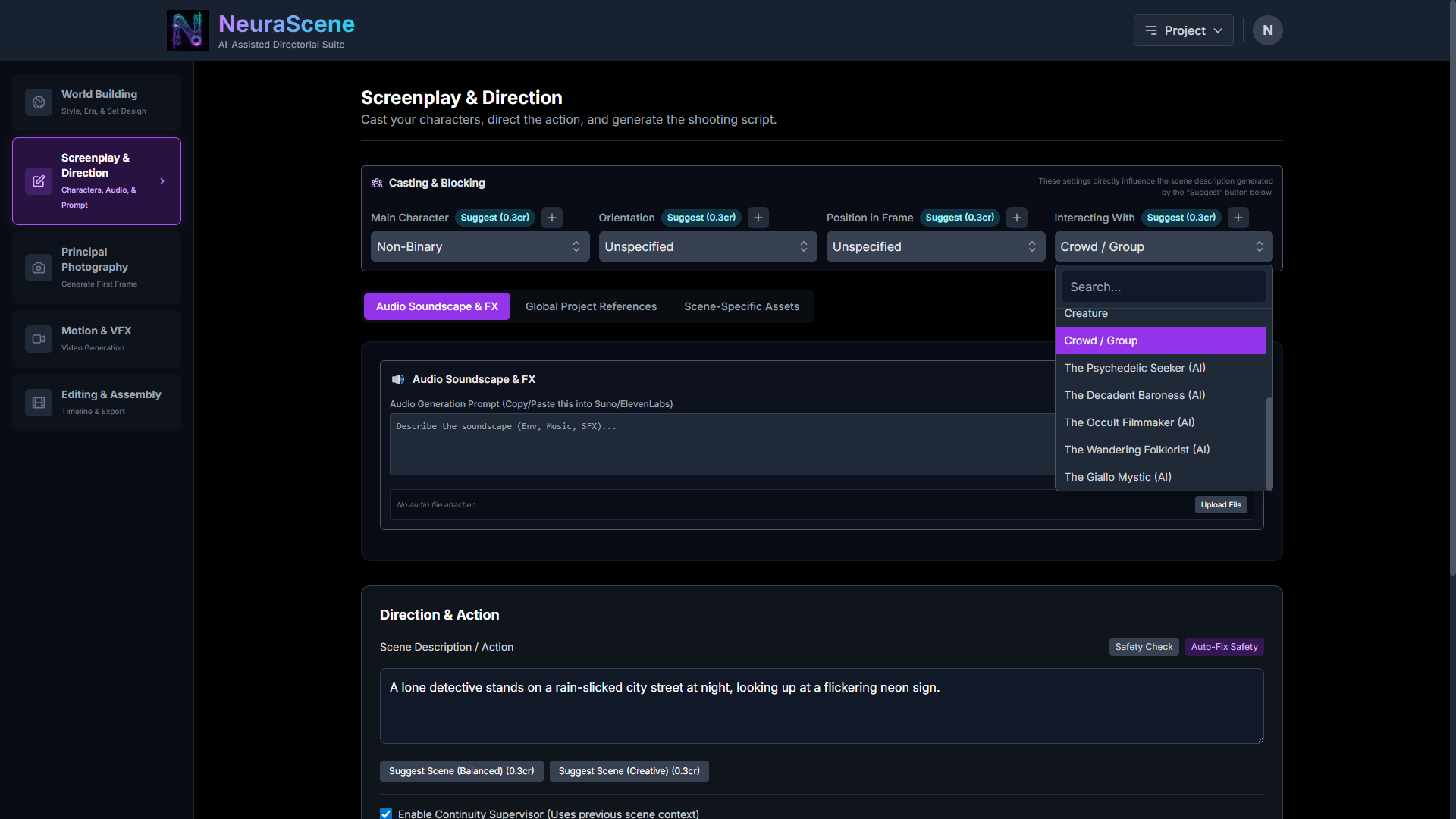
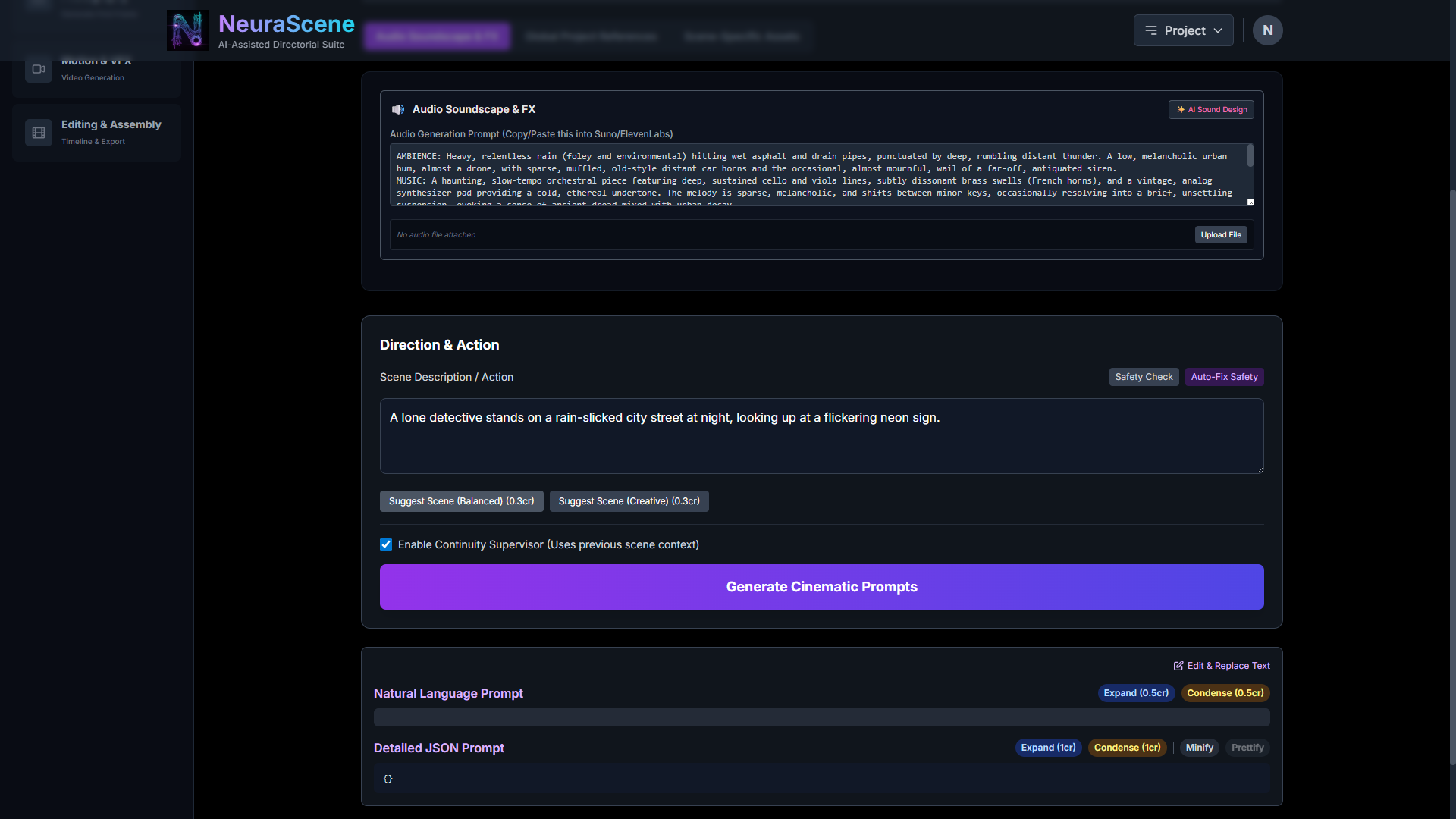
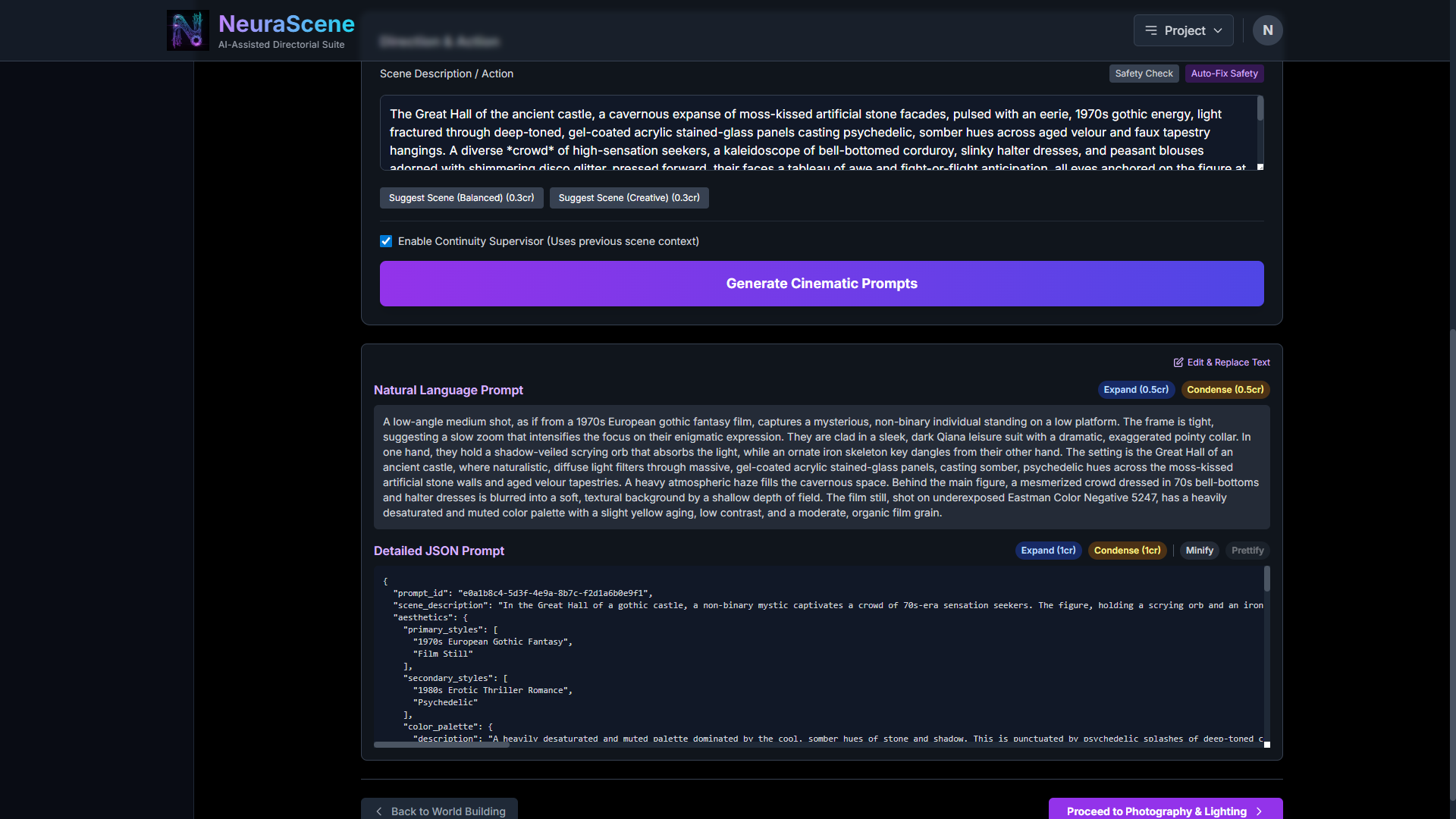
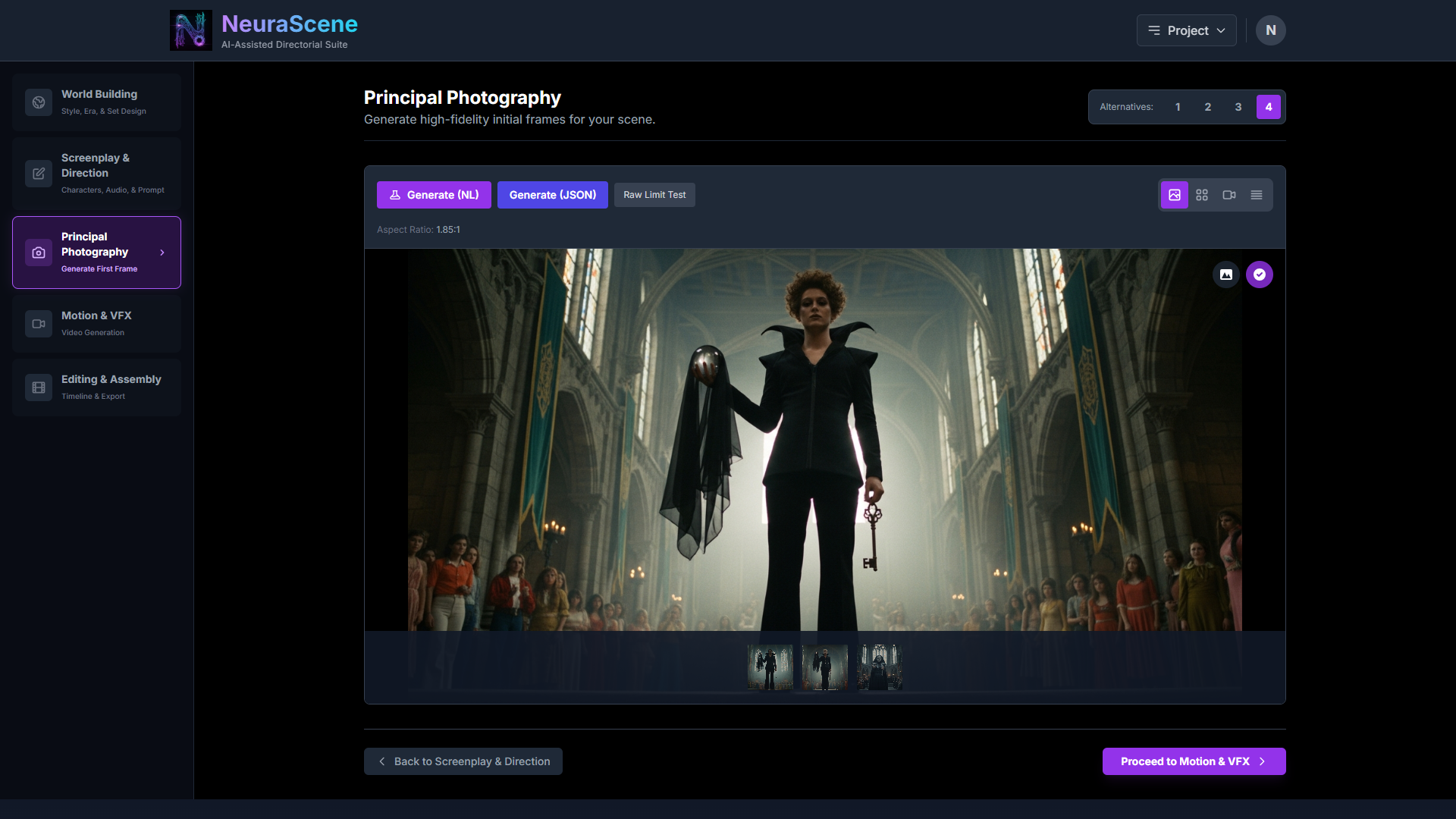
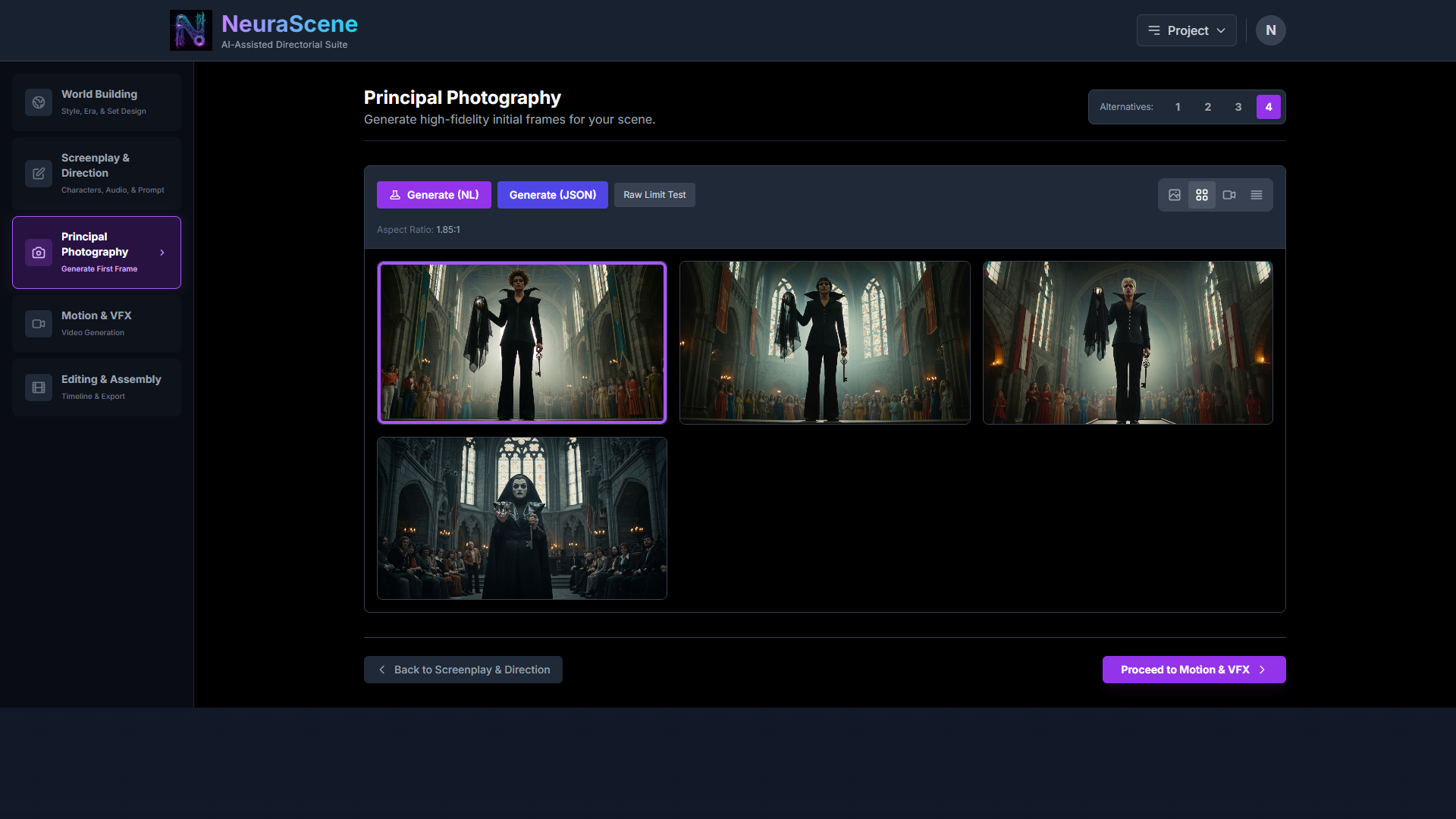
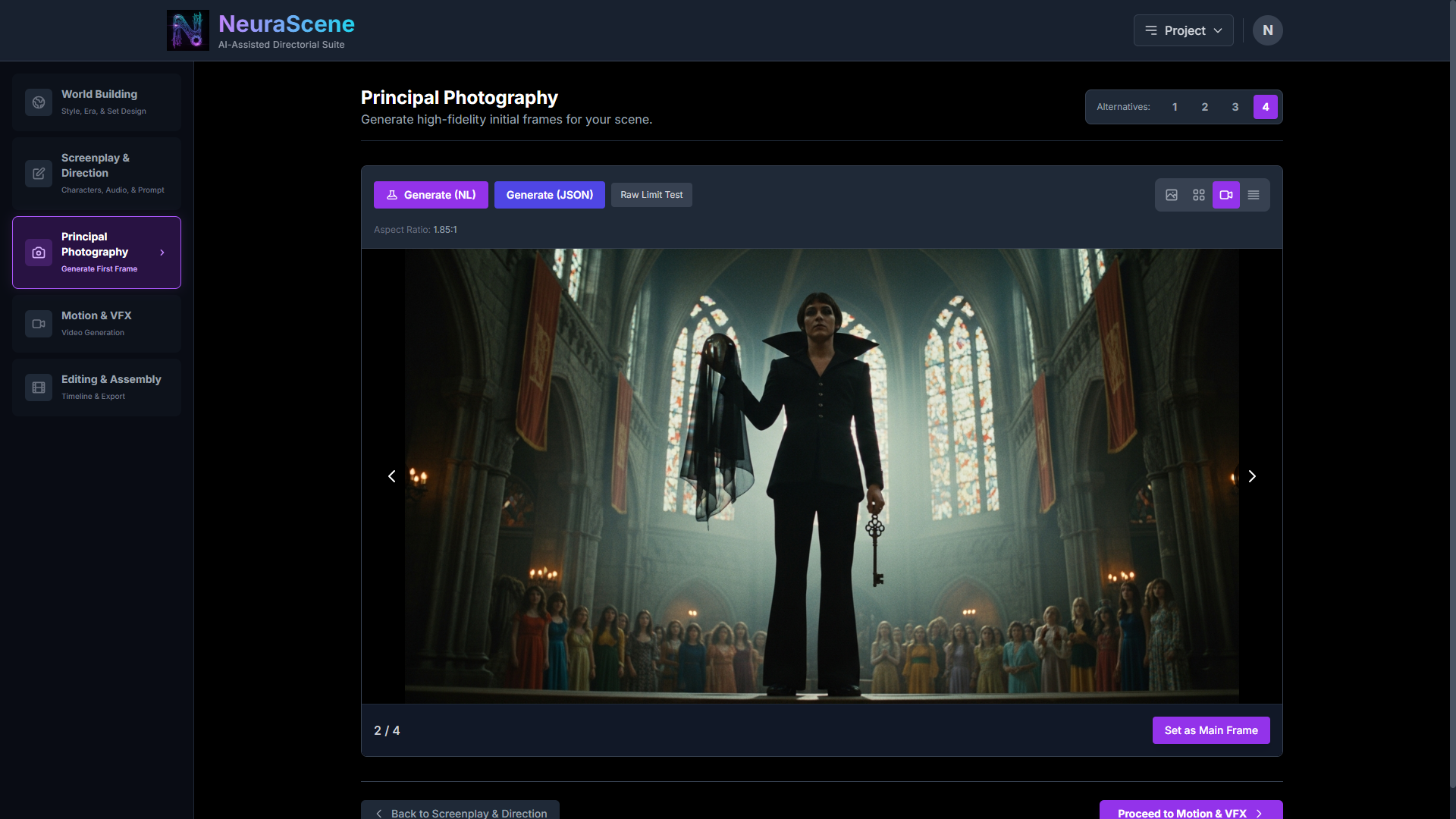
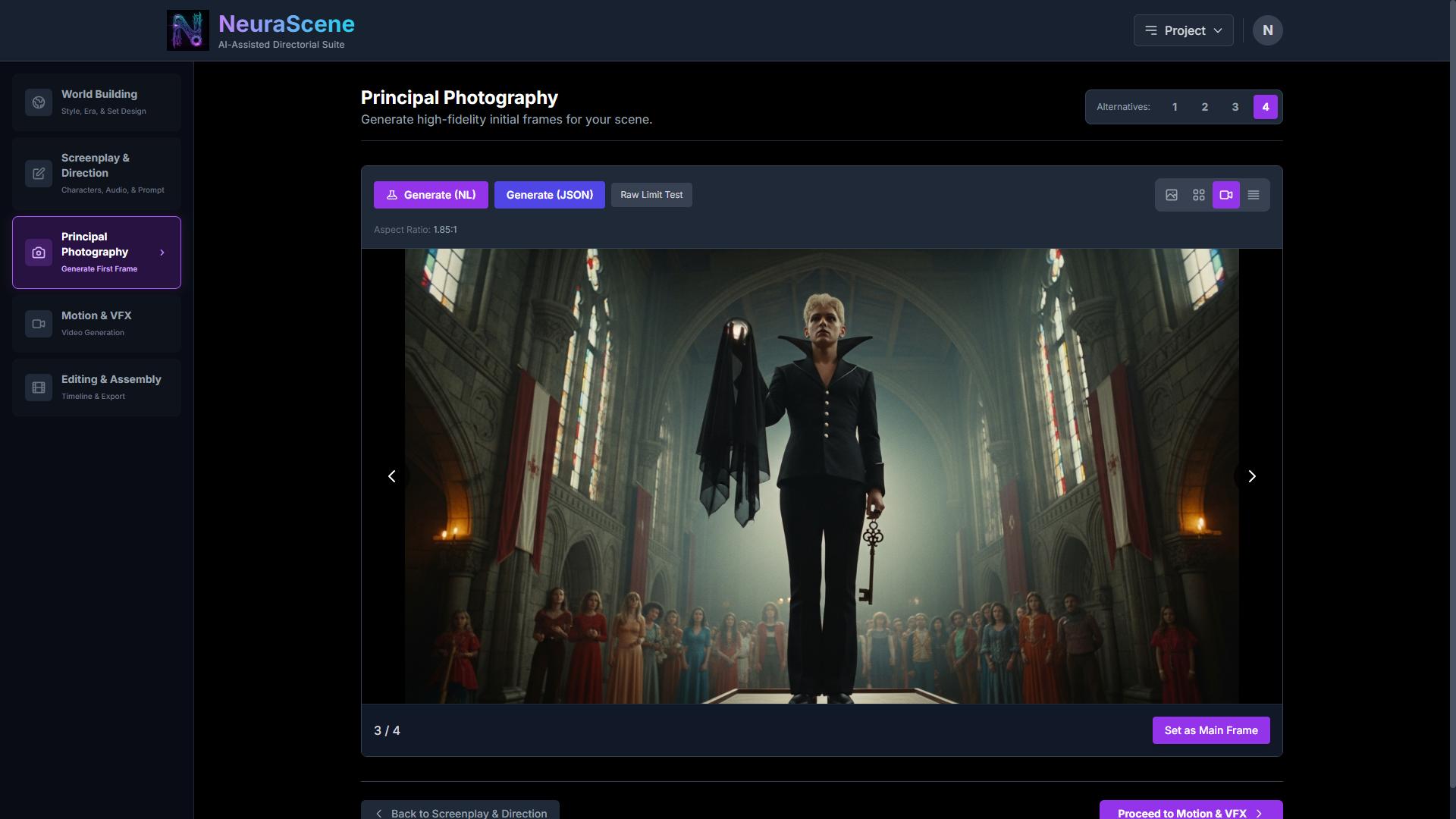
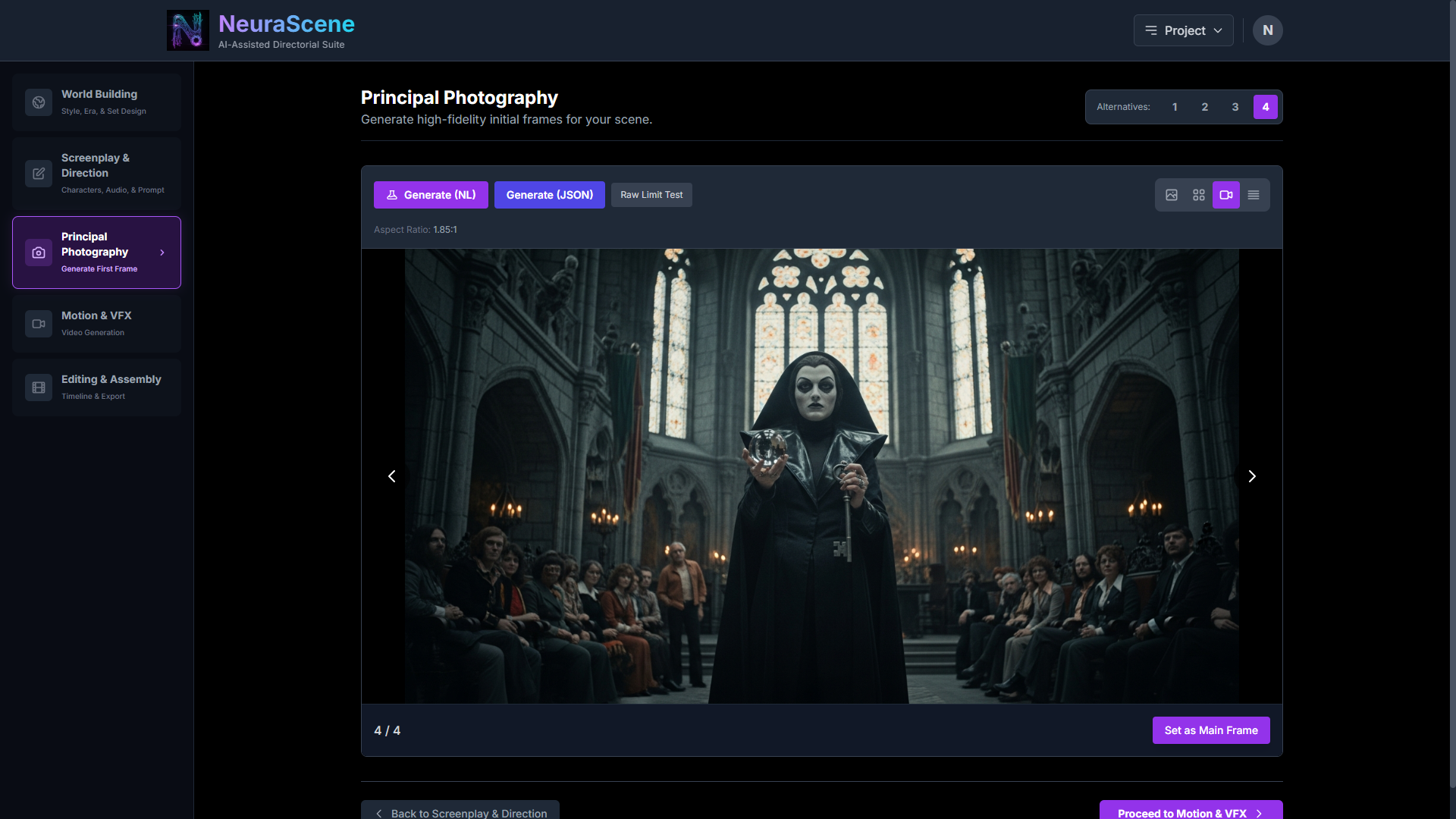
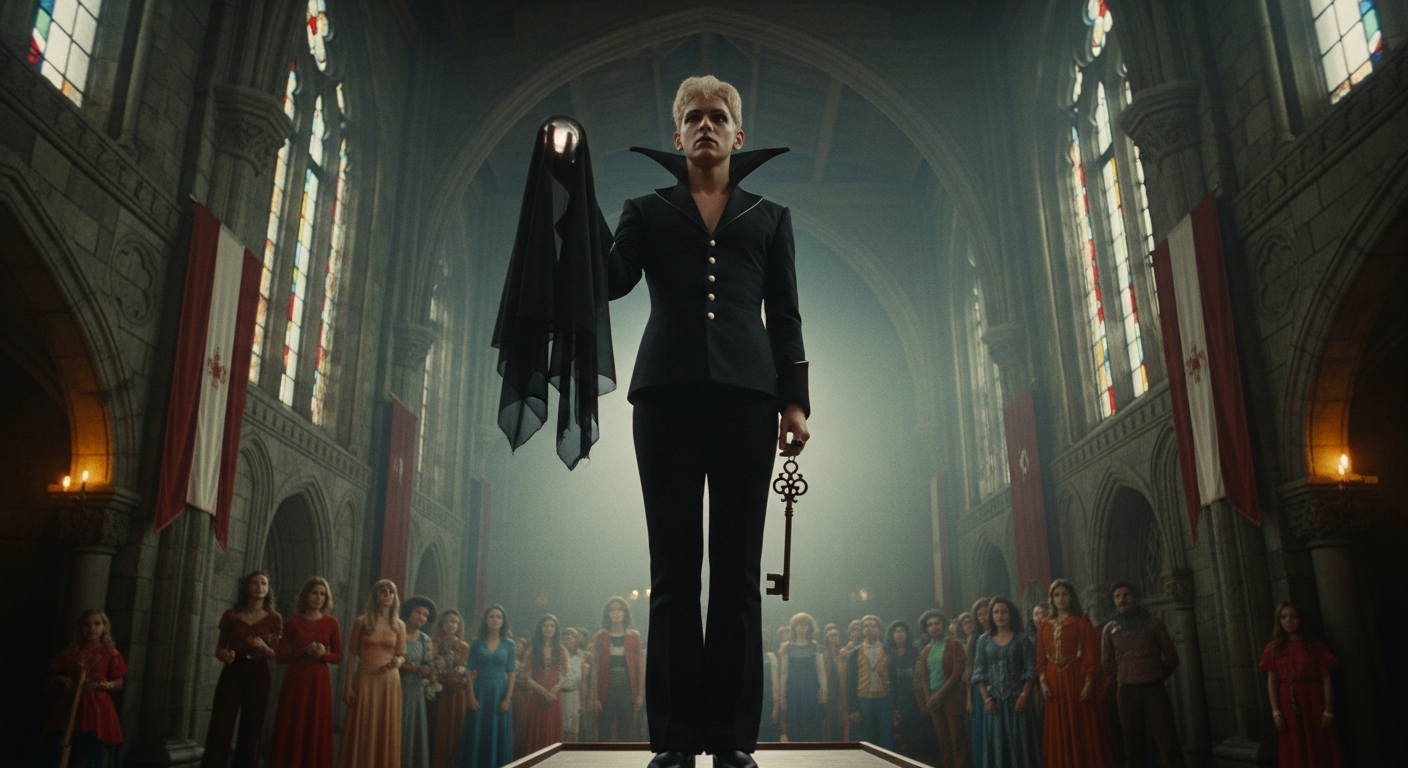
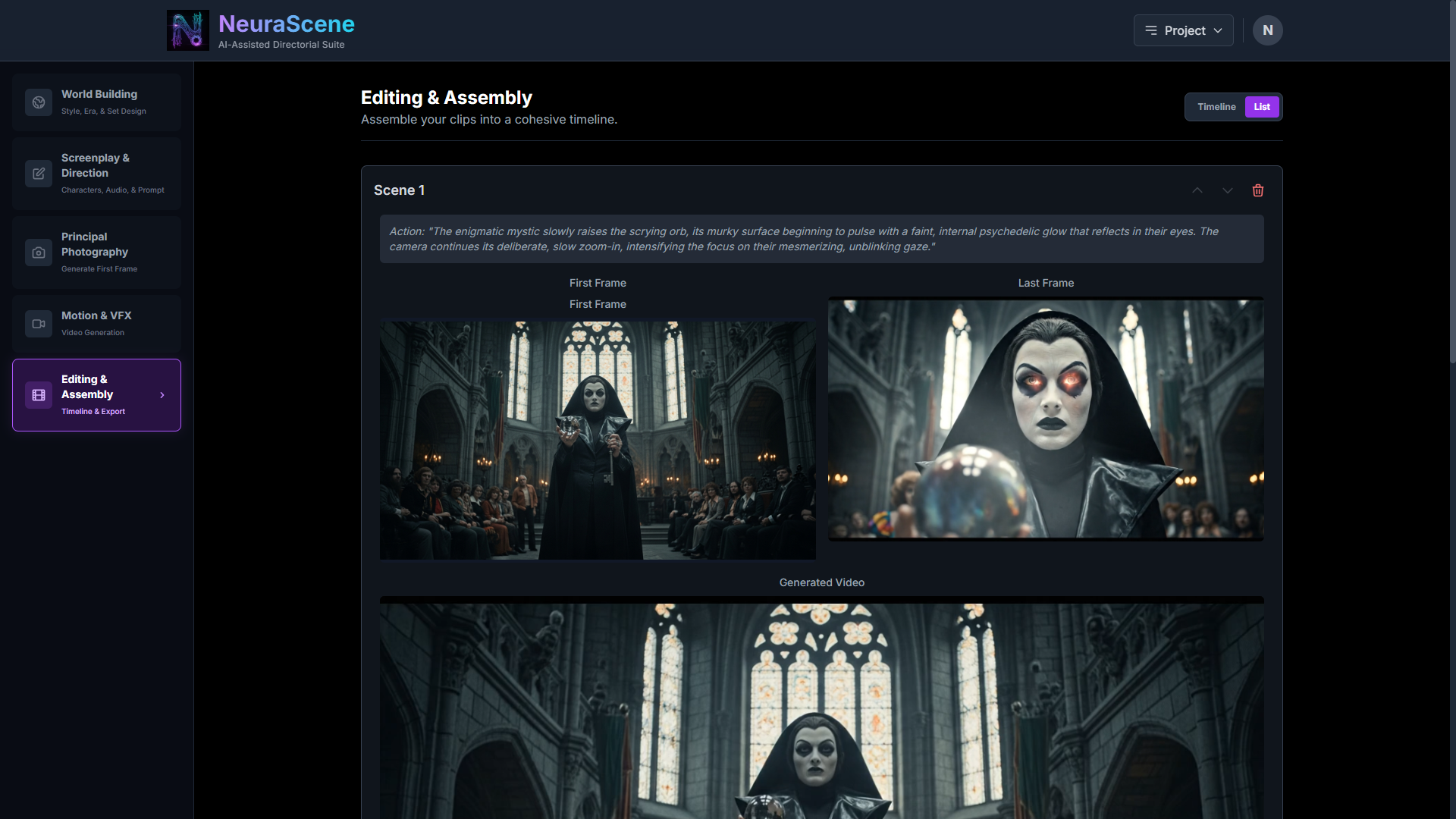
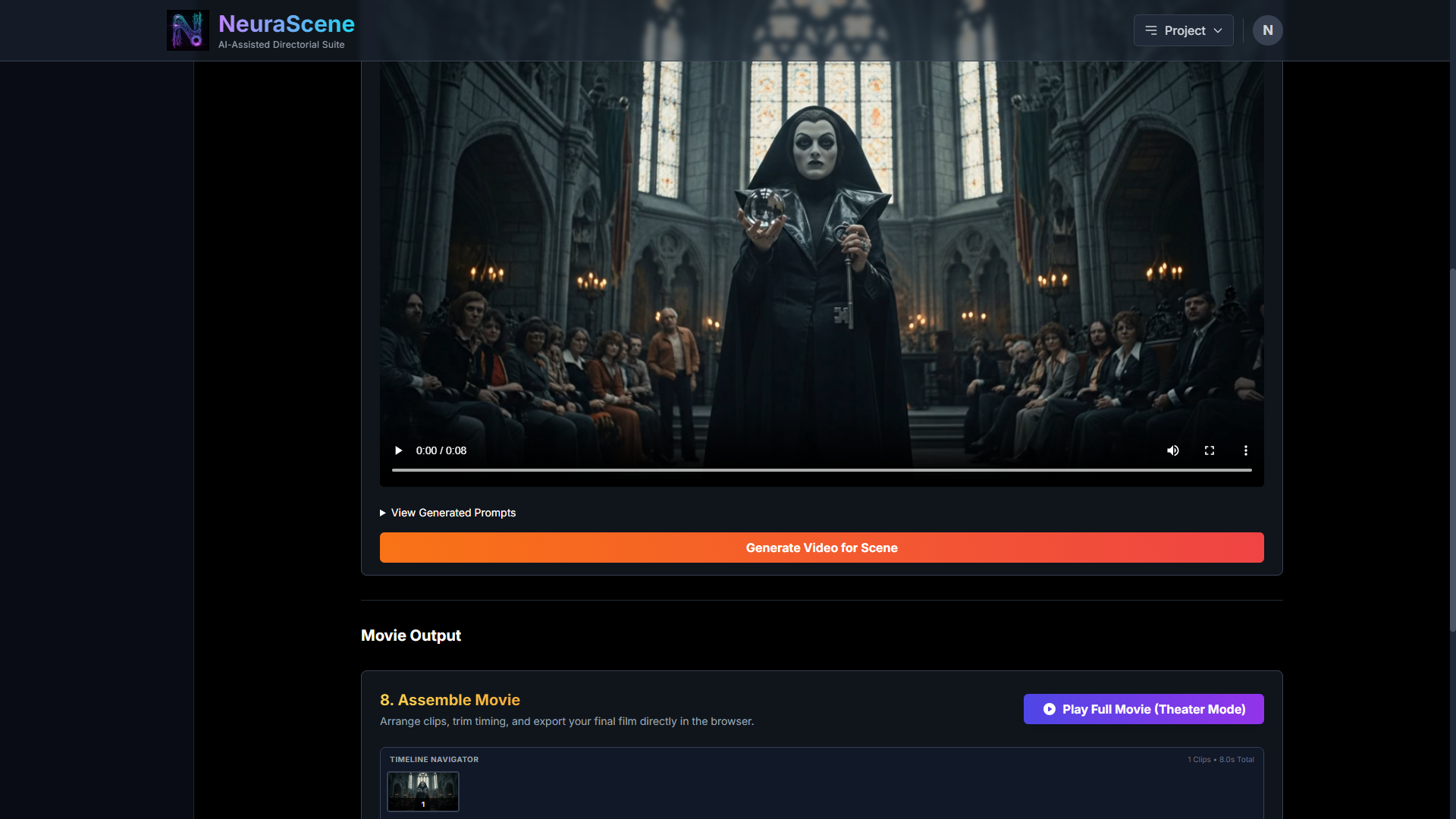
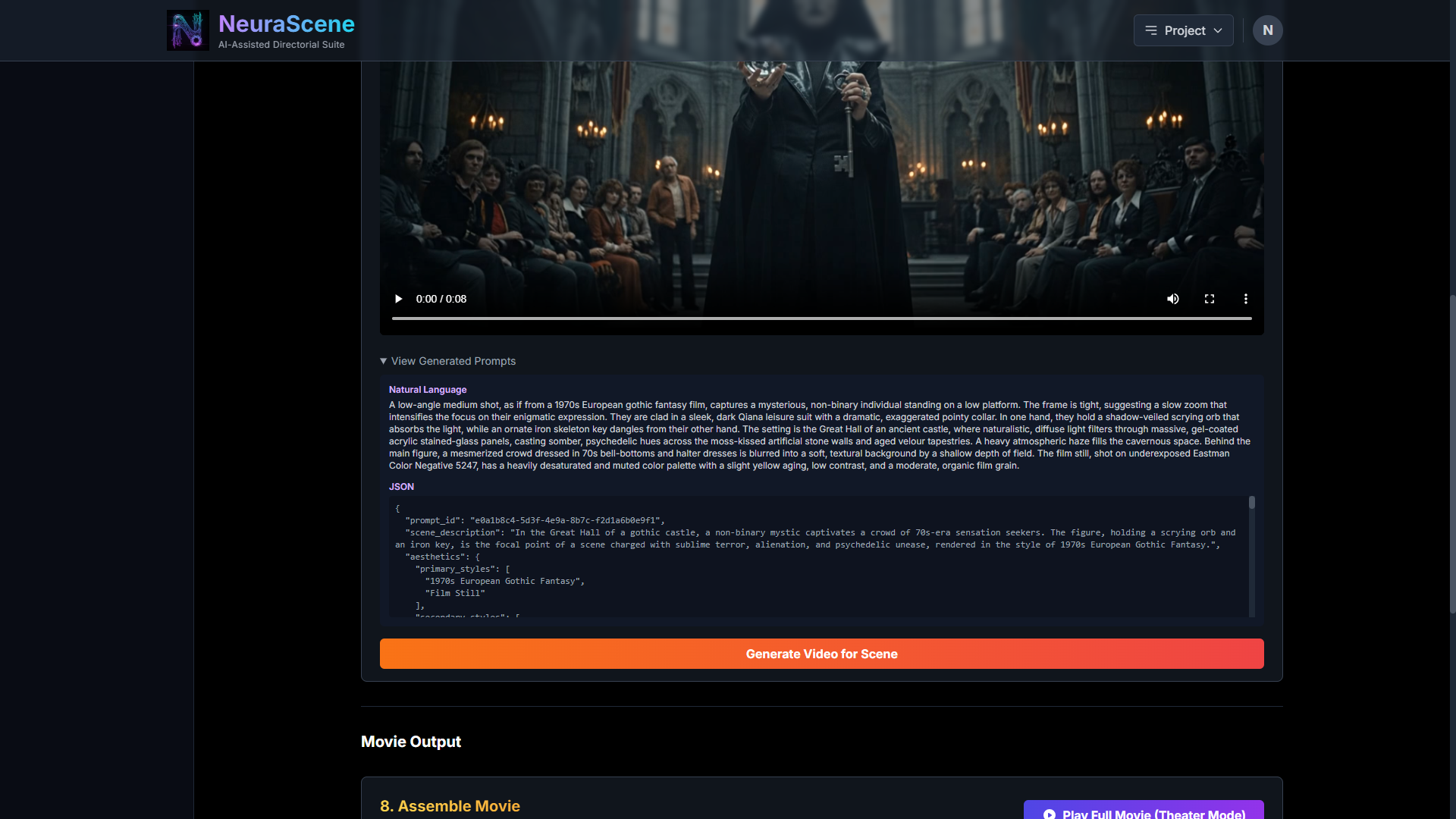
TIP: If you use a lot of wardrobe and want to see it realised, one or two characters can only wear so much stuff. Try including a crowd/group in the scene. The suggest button can add five options at a time for you. Otherwise the + button is always available for you to add your own.
🎬 NeuraScene Pro Tip: Mastering the Off-Screen Voice
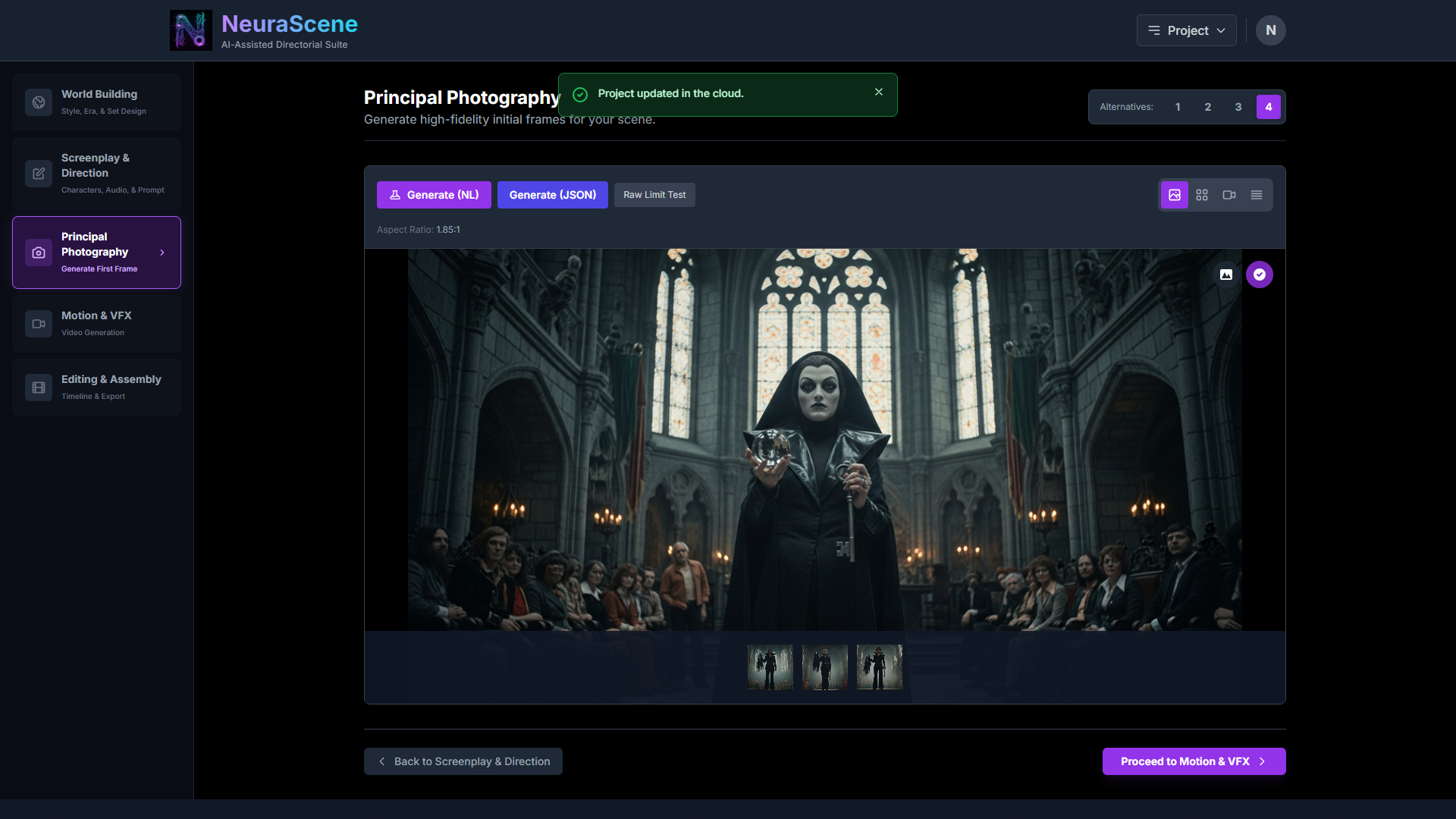
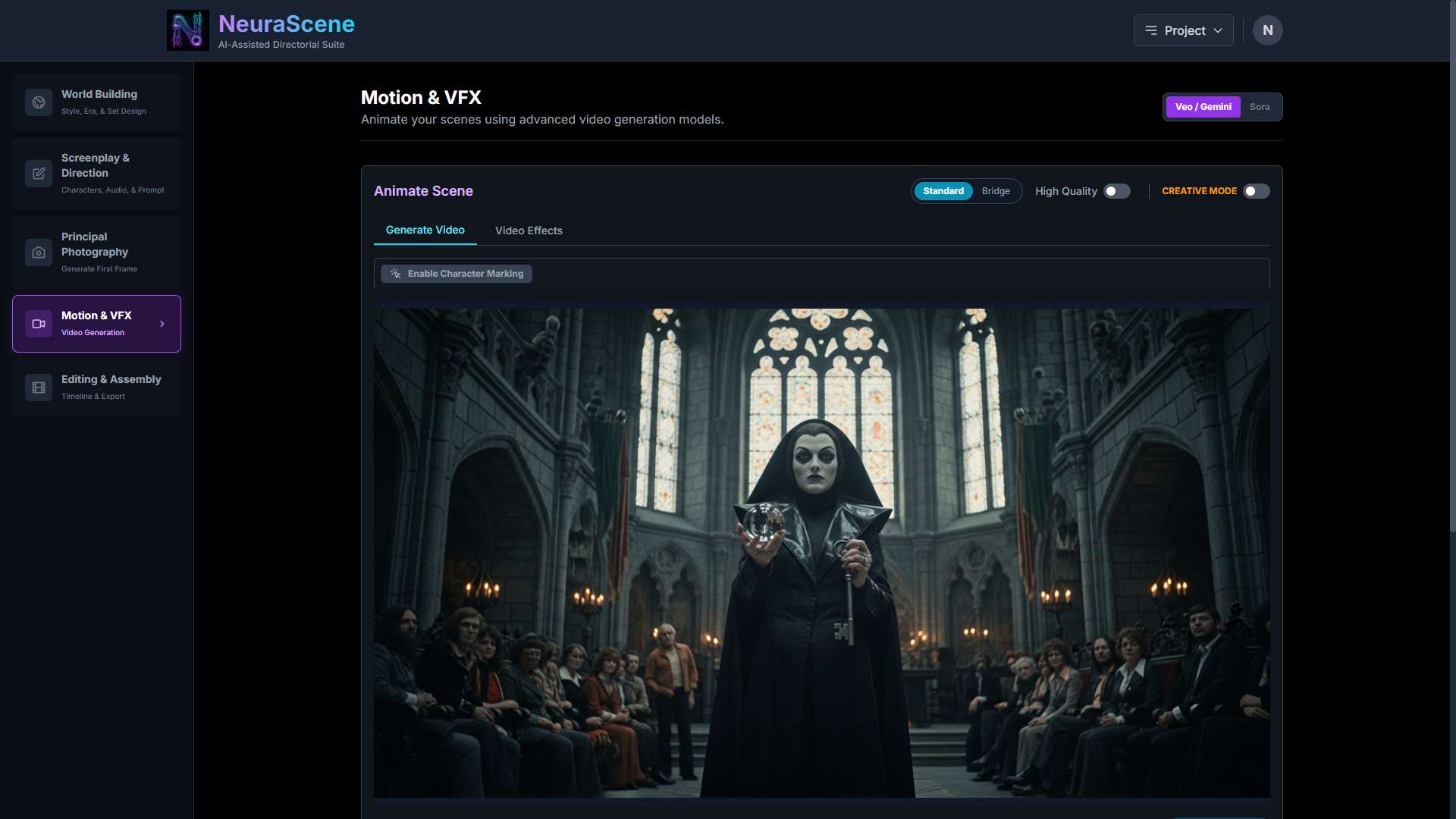
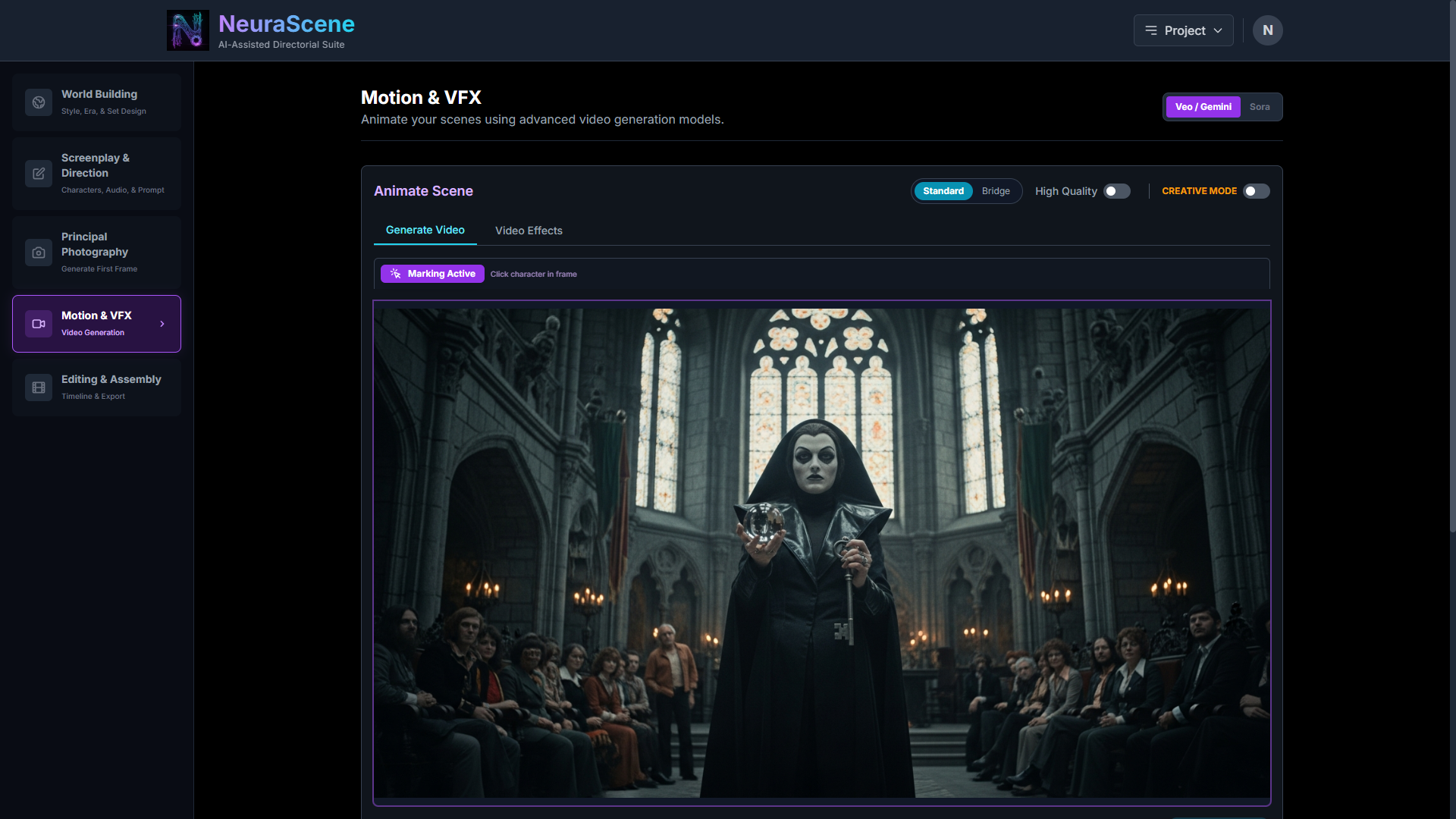
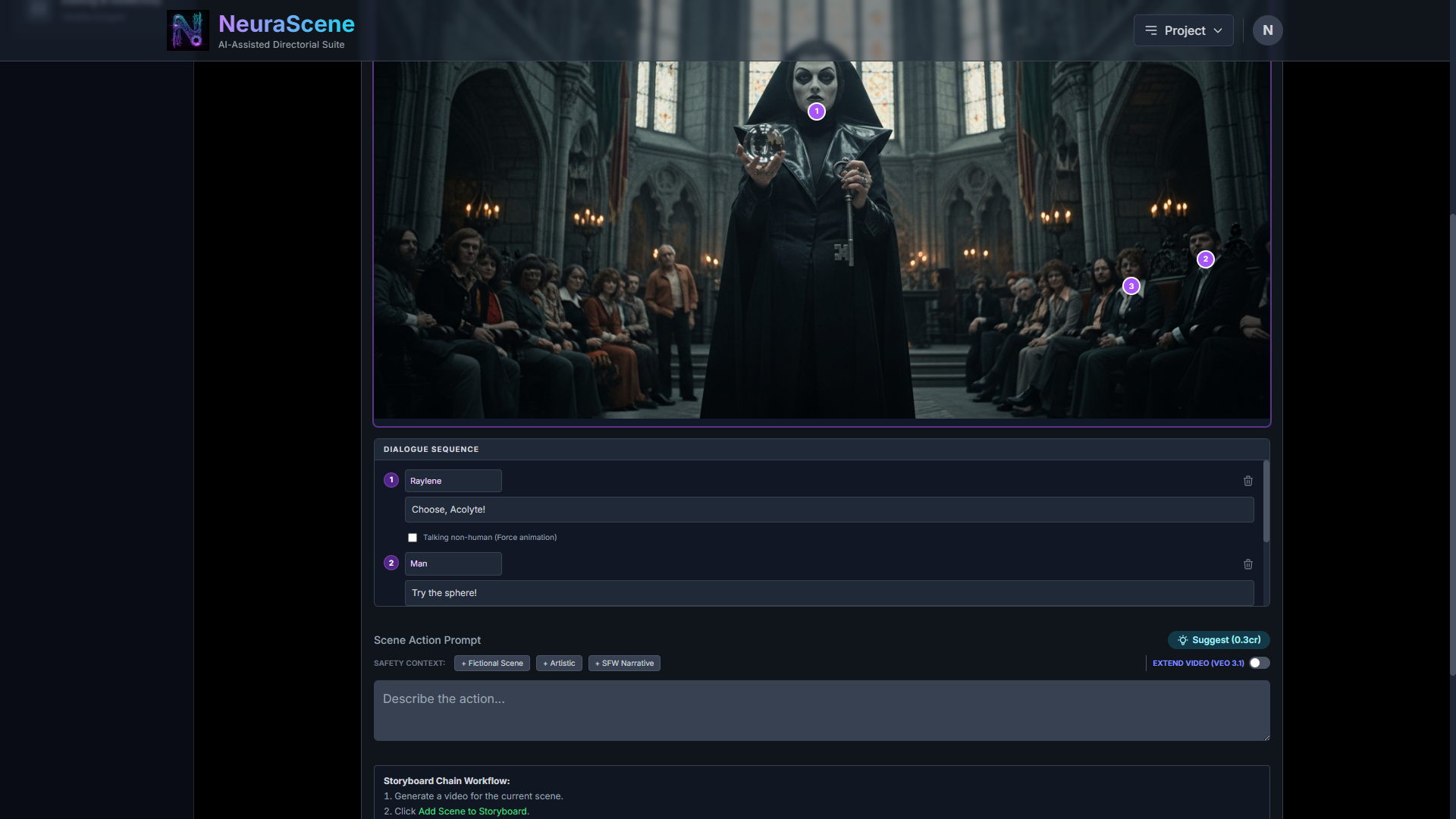
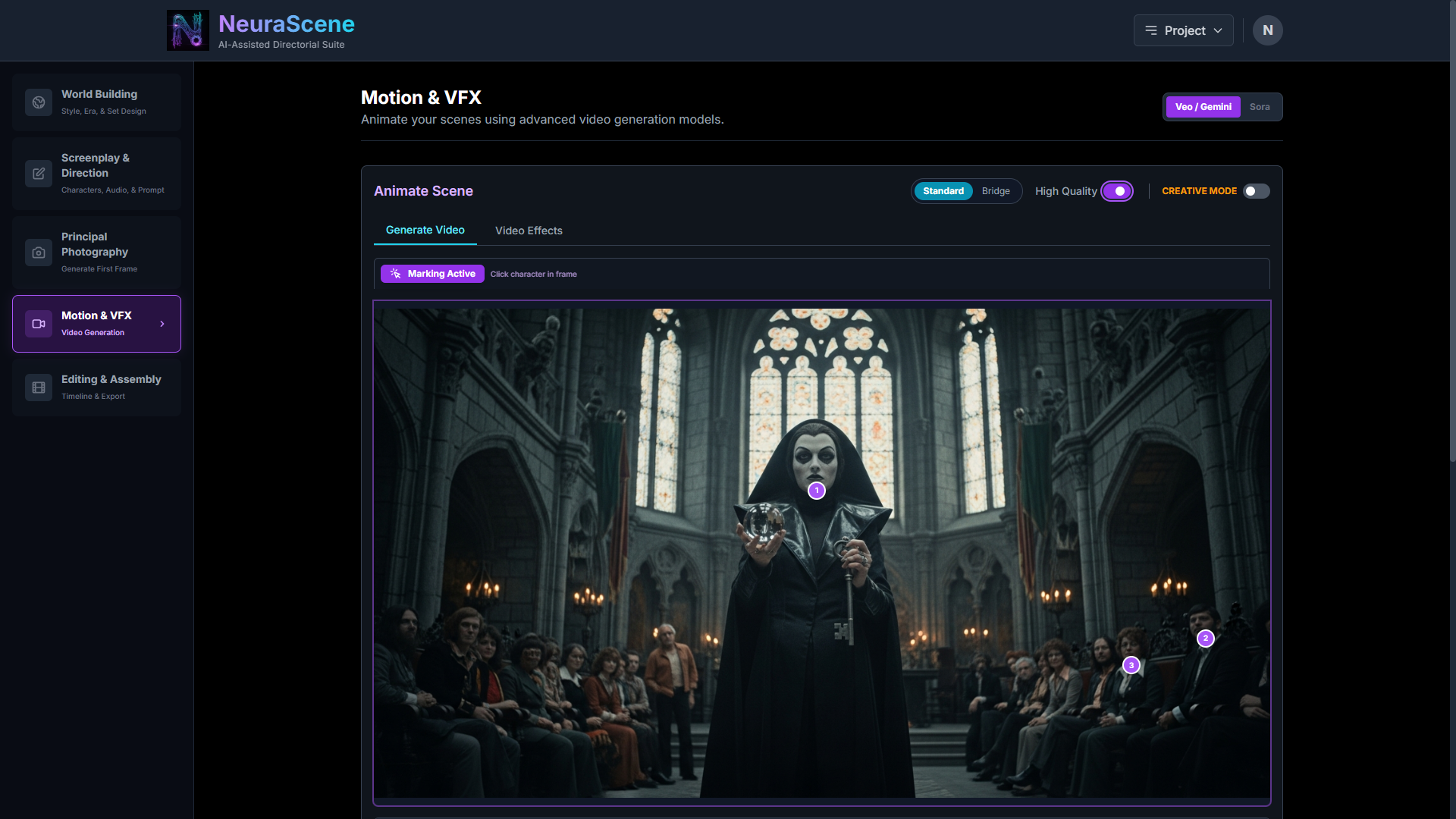
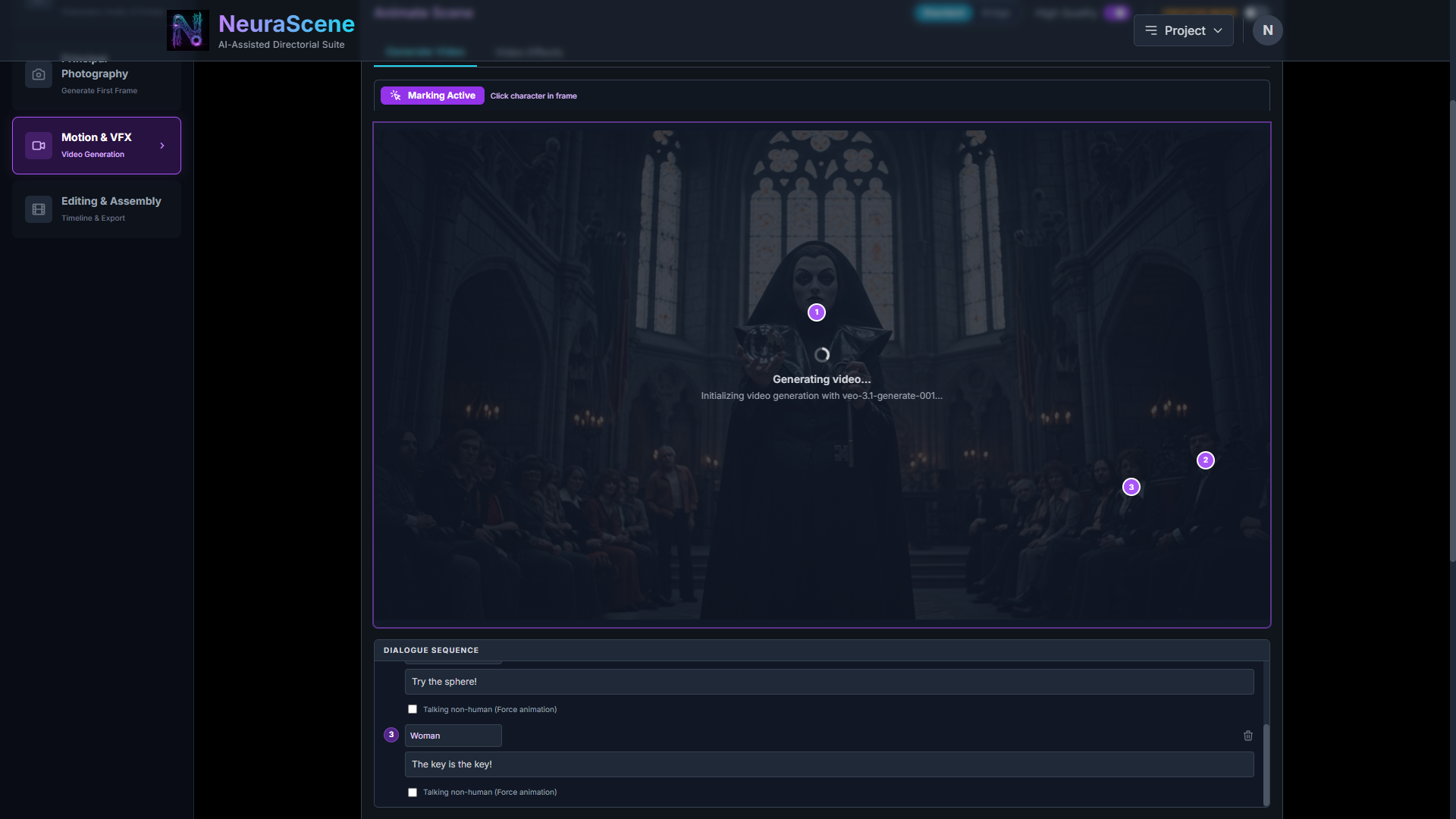
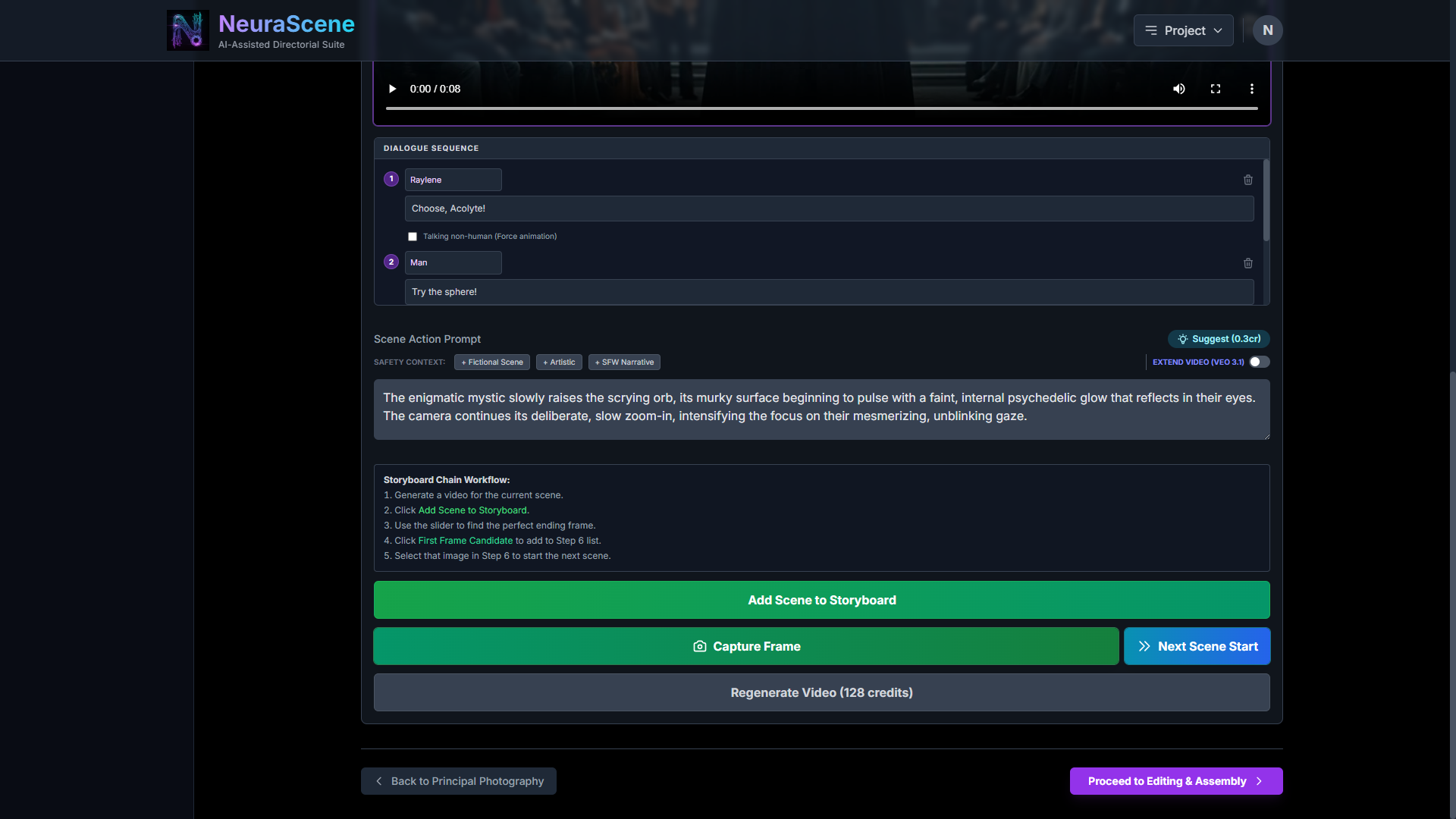
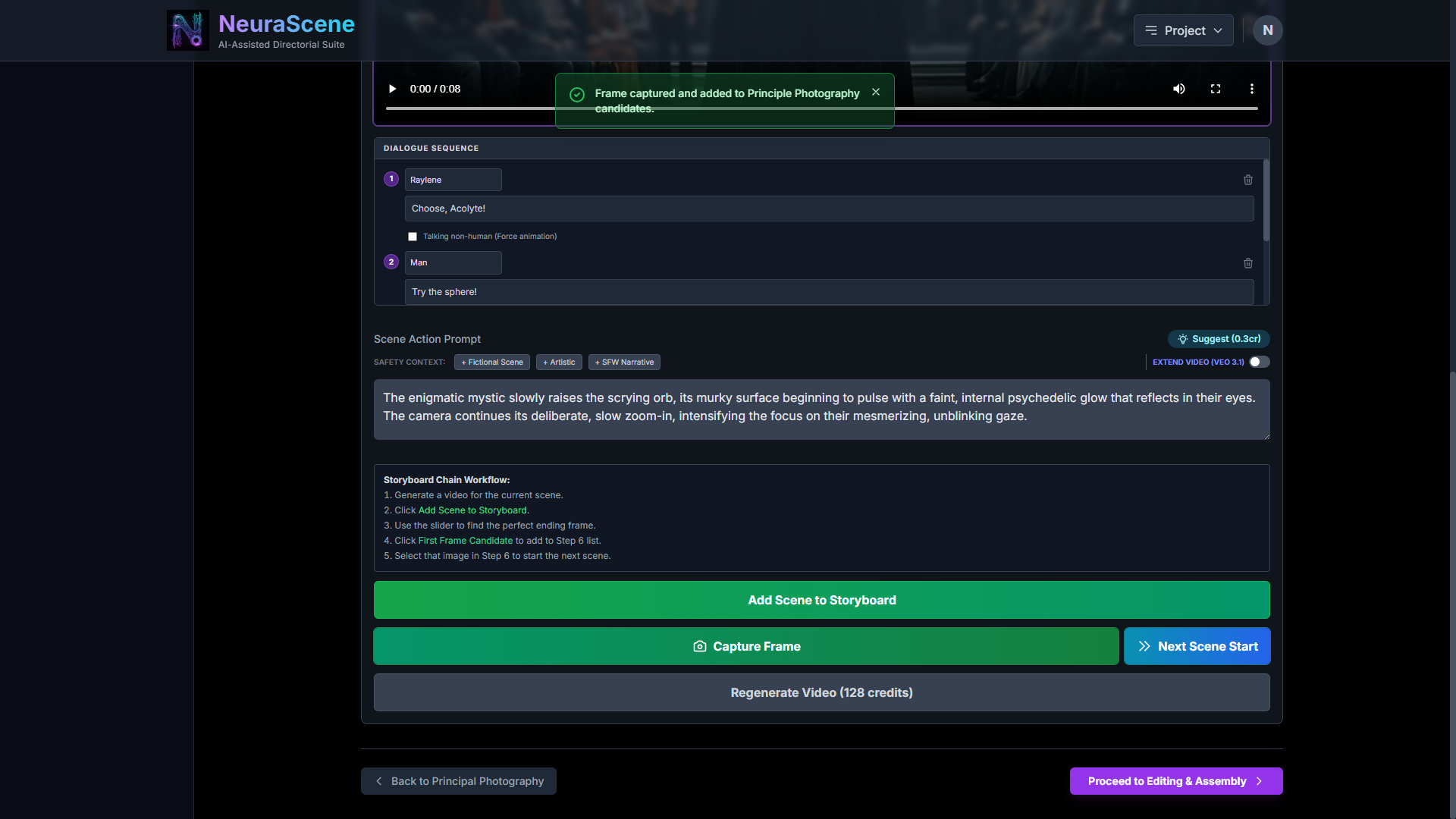
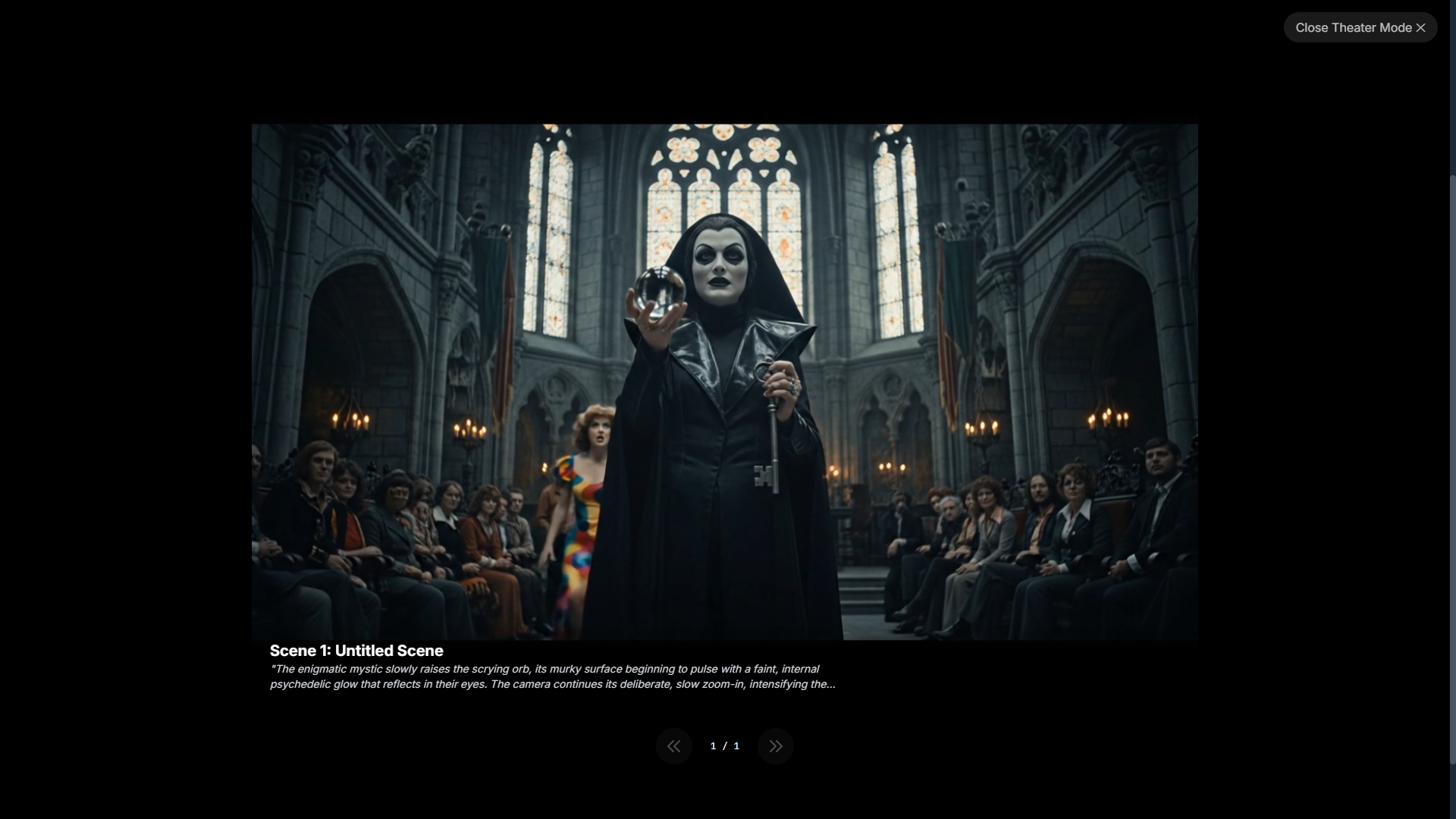
The Challenge: AI video models (like Veo and Sora) are "visually literal." If you mark a character to speak, the AI desperately tries to keep their mouth on screen. When you call for a dramatic zoom-in or a wide pan, the speaking character often gets pushed out of the frame. To "fix" this, the AI often hallucinates a new, random face in the center of the shot to deliver the lines—shattering your scene's continuity.
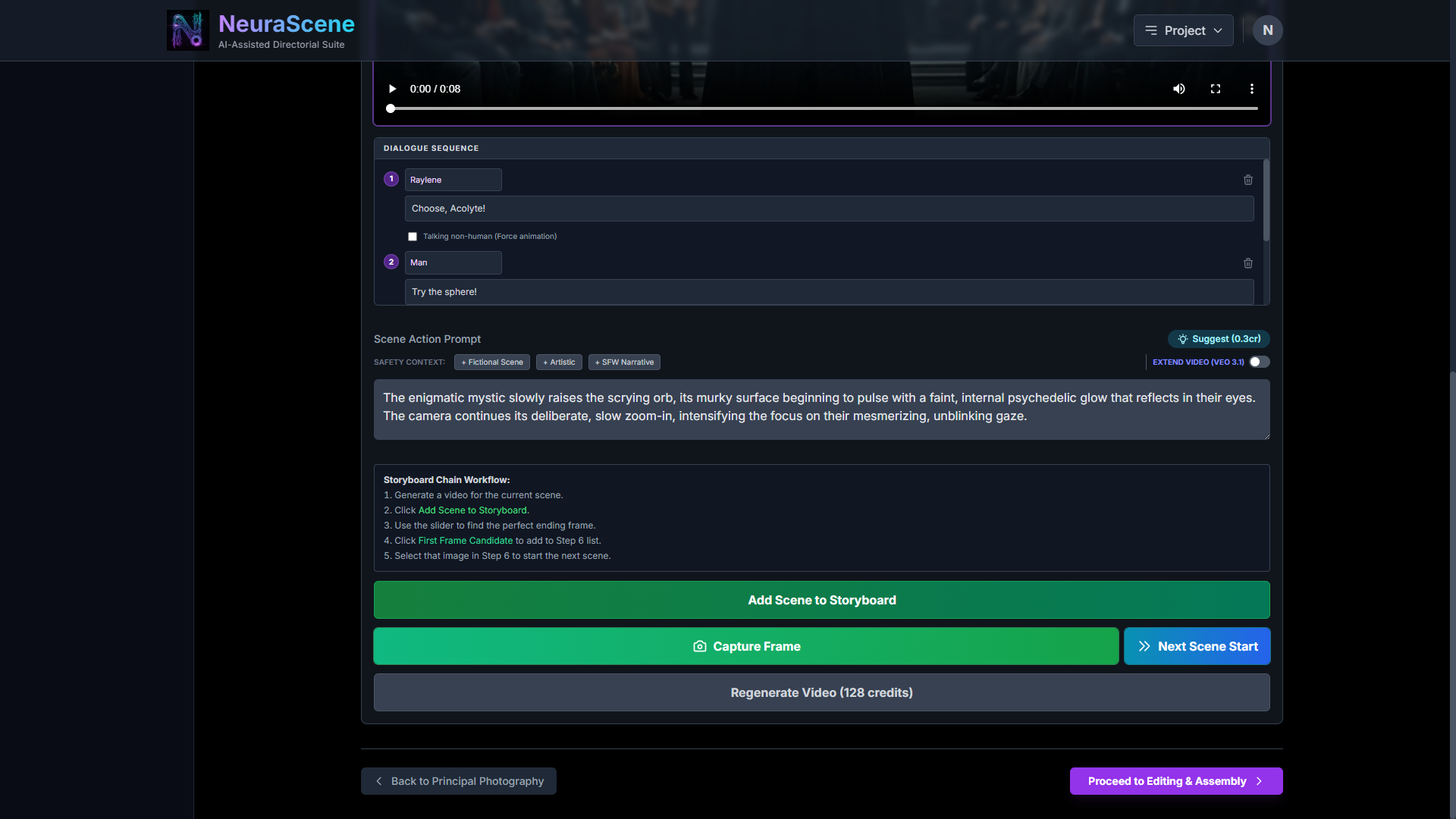
The Solution: Use the "Off-Screen Voices" toggle in the Dialogue Sequence editor.
When to use it:
The Heroic Zoom: You start on a group but zoom tight on the protagonist while another character continues their warning from the edge of the screen.
The Tracking Pan: Your camera follows one character walking past another, but the dialogue exchange continues after the first character has left the frame.
Crowded Scenes: When you have multiple speakers and complex movement, this gives the AI "permission" to separate the voice from the visual mouth-movement.
Why it’s a game-changer: It forces the AI to treat the character as a persistent entity that exists outside the camera's view. You get professional-grade cinematic audio continuity without the "hallucinated stranger" bug.
Directorial control is no longer limited by what the camera sees—it's defined by what you intend.
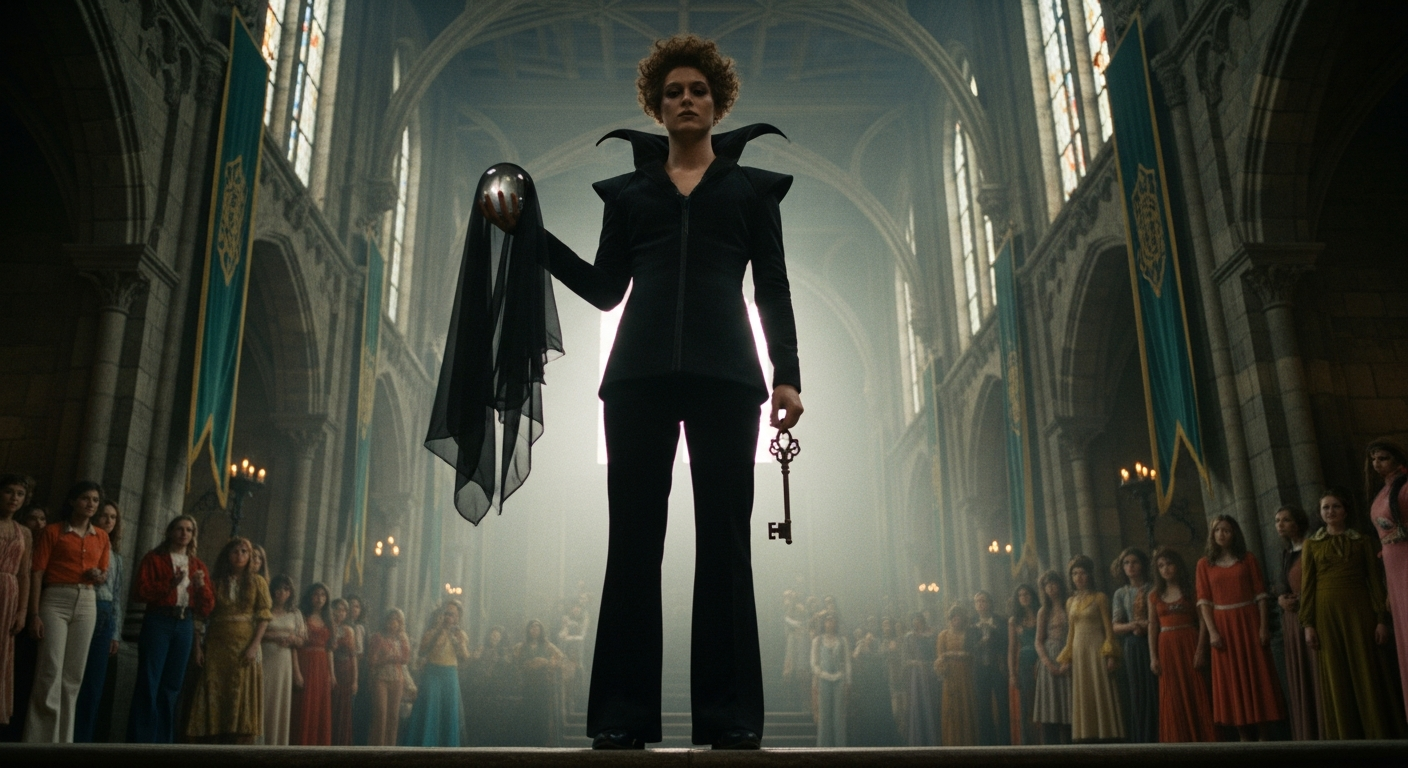
Without:
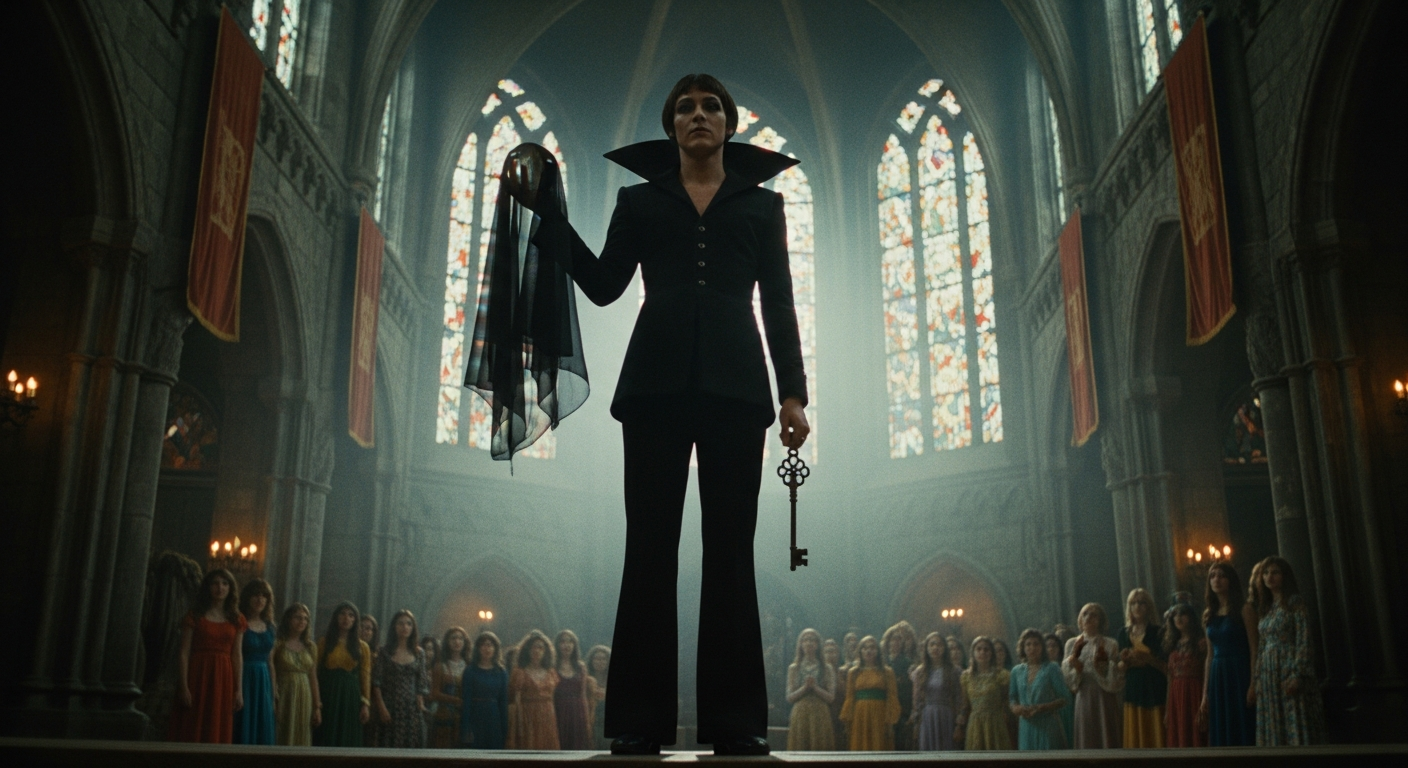
With: